
Trello Review: Can This Project Management Tool Still Compete in 2026?
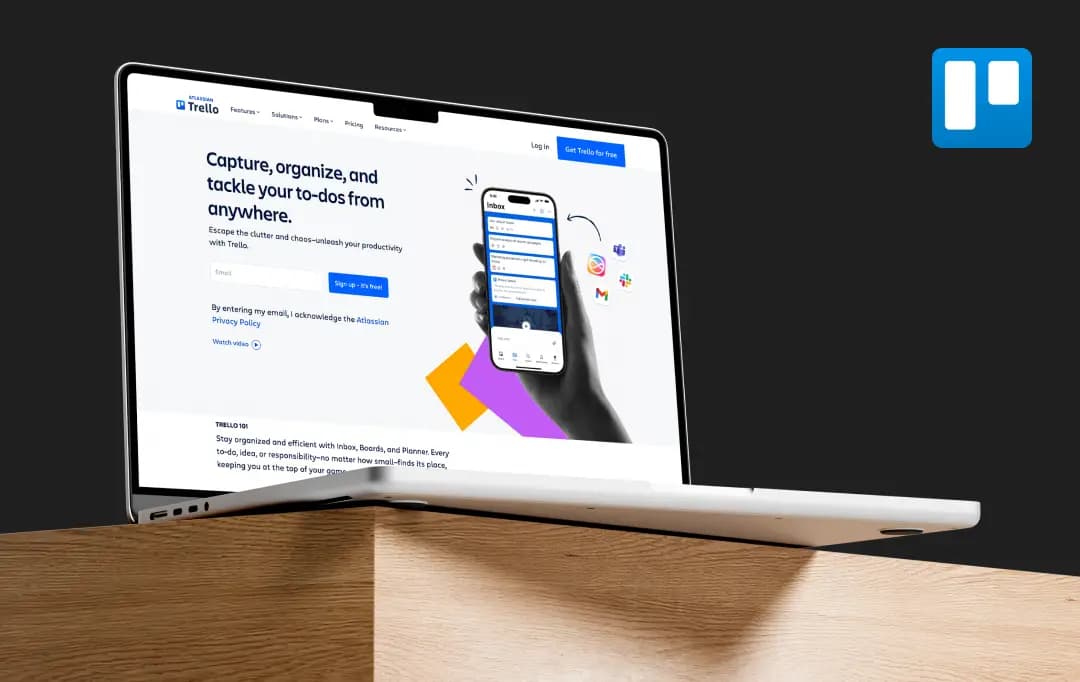
Trello sells itself on simplicity: boards, lists, cards, done. I tested it against a real workload to see where that simplicity holds up and where it starts to cost you.
Trello has been the default answer to "how do I organize this" since 2011, and fifteen years later, it's still the tool most people picture when they hear the word Kanban. But simple is doing a lot of work in that pitch.
Open a Workspace today, and you'll also find Butler automation, Atlassian Intelligence card summaries, five different board views, and a Power-Up marketplace with hundreds of add-ons bolted on.
That's a very different product from the sticky-note board Trello started as, and it raises the same question every mature tool eventually faces: has it grown into something more capable, or just more complicated?
So, here’s my comprehensive Trello review after running an actual editorial workflow through it for several weeks. Read on to see if this tool is suitable or just too basic for your project management needs.
Pros and Cons of Trello
Pros
- Genuinely fast to learn, new team members can start contributing within minutes
- Free plan has no user cap and includes unlimited cards, unlimited Power-Ups, and 250 automation runs/month
- Butler automation handles rule-based workflows without code or a Zapier subscription
- Cheapest per-seat entry point among major PM tools, at $5/user/month on Standard
- Power-Ups connect to 200+ external tools (Slack, GitHub, Google Drive, Salesforce)
Cons
- No native task dependencies; Task B can't be blocked on Task A without a workaround or Power-Up
- The 10-board-per-workspace limit on the free plan is the first wall most teams hit
- Automation run limits (250 free, 1,000 on Standard) get eaten fast by even one busy board
- Timeline view exists but has no dependency arrows or critical-path calculation, unlike dedicated Gantt tools
- Many of the more useful Power-Ups (time tracking, advanced reporting) require their own separate subscription on top of Trello
Standout Features of Trello
Trello's core loop as one of the best to-do list apps hasn't changed since 2011: boards, lists, cards, but what surrounds that loop has expanded considerably. Here's what's actually worth paying attention to.
1. Boards, lists, and cards (4.2/5)
This is the whole pitch, and it works perfectly well for the platform. Cards move across lists representing workflow stages. Each card can hold checklists, attachments of up to 250 MB on paid plans, due dates, labels, comments, and custom fields. There's no onboarding curve to speak of; this is the feature that makes Trello the default recommendation for teams that don't want to think much about their project management tool.
2. Butler automation (4.4/5)
Butler is Trello's built-in, no-code automation engine, and it's the single most underrated part of the product. It supports one-click card and board buttons, scheduled commands, and due-date-triggered commands. A typical setup: when a card lands in Done, Butler archives it, notifies the assignee, and logs the date. The catch is the run cap: free Workspaces get 250 runs a month, and a single active Butler rule on a busy board can burn through that in a week.
3. Multiple board views (4.5/5)
Trello's five views, Board, Table, Calendar, Timeline, Dashboard, and Map, are all gated behind Premium. Calendar view shows every card with a due date in a monthly layout; Table view turns the board into a spreadsheet for bulk editing and filtering; and Dashboard view gives real-time charts on workload and card distribution.
Timeline is the Gantt-style view most teams actually want, but it's worth tempering expectations: it shows date bars, not true dependency chains.
4. Atlassian Intelligence (AI features) (4.5/5)
Since the Atlassian integration matured, Trello has folded in AI card summaries, smart descriptions, and automation suggestions, available starting on the Standard plan. It's a genuinely useful layer for catching up on a board you haven't touched in a week, though it's closer to a convenience feature than a core reason to choose Trello over a competitor.
5. Power-Ups (4.0/5)
Power-Ups are Trello's extension marketplace, and they're where the platform's actual ceiling gets set. Popular ones include Slack, Google Drive, Jira, Confluence, GitHub, Dropbox, Evernote, and Salesforce integrations. The free plan restricts you to one Power-Up per board, not per workspace, which matters more than it sounds like it should once you're running more than two or three active boards.
6. Custom fields (4.0/5)
Custom Fields is arguably the most important Power-Up in the entire directory because it's what turn a card from a sticky note into a structured record. It adds dropdowns, checkboxes, dates, and number fields directly to the card front, so priority, status, and budget are visible without opening anything.
How Does Trello Work
Similar to most day planner apps, Trello runs on a simple visual system: boards, lists, and cards. Once I set up a board for a personal project, the logic clicked almost immediately; there's no steep learning curve here, which is honestly refreshing after using clunkier project management tools.
As soon as you finish the Trello login process, here's how it actually works, step by step:
1. You start with a board
Think of the Trello board as your project's home base. I created one called "Blog Content Calendar," and it took about ten seconds.
2. Boards are divided into lists
Lists act like columns representing stages of a workflow. By default, most people set up something like "To Do," "Doing," and "Done", but you can rename or add as many as you want.
3. Cards live inside lists, and each card is a task
I added a card under "To Do" and was surprised by how much you can pack into one: descriptions, checklists, due dates, attachments, and comments.
4. You drag and drop cards between lists as work progresses
This is the core mechanic: when I finished drafting a blog post, I just dragged its card from "Doing" to "Done." No forms, no saving, it just moves.
5. Labels add color-coded context
I tagged cards by priority (red for urgent, green for low priority) so I could scan the board and immediately see what needed attention.
6. Checklists inside cards break tasks into subtasks
For a single card like "Write blog post," I added a checklist with steps: outline, draft, edit, publish, and checked them off as I went.
7. Due dates and reminders keep things on track
Trello sends a notification as a deadline approaches, which I tested by setting a due date a few minutes out; it pinged me right on schedule.
8. Members and assignments make it collaborative
You can assign a card to a specific person, and they'll see it under their profile's "cards assigned to me" view.
9. Power-Ups extend functionality
These are like plug-ins, calendar view, voting and custom fields that you can enable per board if the basic setup isn't enough.
10. Automation (via Butler) handles repetitive actions
I set up a simple rule: “when a card is moved to Done, archive it after 3 days”, and it worked without any code or setup hassle.
Understanding Trello Pricing
Trello’s cost can be divided into a four-tier, per-seat pricing model, with Trello premium being the most popular among them. Here’s a quick overview-
| Plan | Price (billed annually) | What You Get |
|---|---|---|
| Free | $0 | Unlimited cards, up to 10 boards/workspace, 1 Power-Up per board, 250 Butler automation runs/month, 10 MB file attachments |
| Standard | $5/user/month | Unlimited boards, unlimited Power-Ups, custom fields, card mirroring, 250 MB file storage, 1,000 automation runs/month |
| Premium | $10/user/month | Everything in Standard, plus Calendar, Timeline, Table, Dashboard, and Map views, unlimited automation runs, workspace-level templates, AI features via Atlassian Intelligence |
| Enterprise | $17.50/user/month | Everything in Premium, plus unlimited Workspaces, organization-wide permissions, Power-Up administration, multi-board guests, and SSO |
*Monthly billing on different Trello plans runs slightly higher on paid tiers: Standard at $6/user/month, Premium at $12.50/user/month. Enterprise pricing typically drops with volume; contact Atlassian sales for teams above 100 seats.
Who Is Trello For?
Trello software isn't trying to be everything to everyone, and it says so implicitly by staying simple. Here's who actually gets the most out of it.
| User Persona | What Trello Does For Them |
|---|---|
| Freelancers & Solopreneurs | Free plan covers a full personal workflow with zero cost and no user cap |
| Small Marketing & Content Teams | Editorial calendars map cleanly onto lists (Ideas → Writing → Editing → Published) |
| Startups & Lean Ops Teams | Standard plan at $5/user/month undercuts nearly every competitor at the entry tier |
| Remote & Distributed Teams | Real-time card updates, comments, and mentions keep async teams aligned without extra tooling |
| Teams Already in the Atlassian Ecosystem | Native sync with Jira and Confluence, plus shared Atlassian Guard security on Enterprise |
| Software Development Teams | Better suited elsewhere, no native sprint management, backlog grooming, or burndown charts |
| Teams With Interdependent, Complex Projects | Also better suited elsewhere, no task dependency tracking without a third-party Power-Up |
Customer Reviews
How was your experience with the product?
Also Reviewed By Us