
ClickUp Review: One Tool to Replace Your Entire Stack?
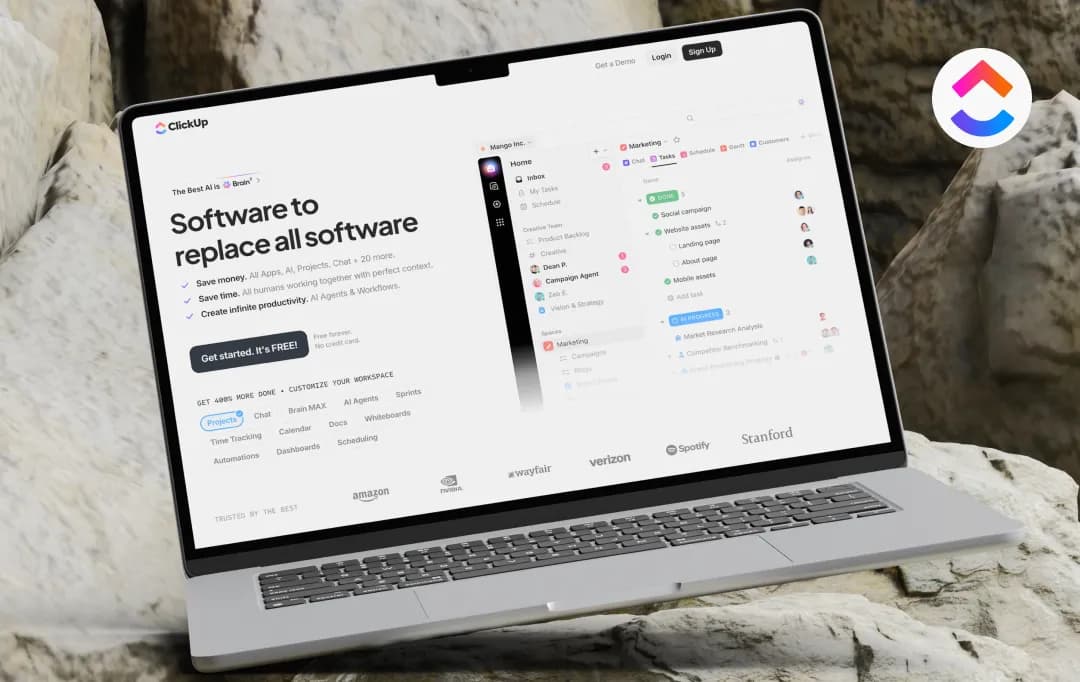
If you've spent any time browsing productivity subreddits or SaaS review sites in the last few years, you've run into ClickUp's marketing promise: one app to replace them all. Tasks, docs, whiteboards, chat, goals, time tracking, sprints, dashboards, and now an AI layer sitting on top of it, all under one login, one bill, one workspace.
It's a great pitch. Most of us are drowning in tool sprawl, paying for Trello and Notion and Slack and Toggl and a separate goal-tracking app nobody actually opens.
I went into ClickUp wanting to like it, and I came out surprised. Here's the honest, slightly skeptical version of the ClickUp review to help you make the right choice.
Pros and Cons of ClickUp
Pros
- Enormous feature depth, tasks, docs, whiteboards, chat, and more in one workspace
- Generous free plan with unlimited tasks and unlimited users
- Competitive pricing at entry tiers ($7–$12/user/month)
- 10+ views (List, Board, Gantt, Calendar, Mind Map, etc.) let teams work how they want
- Native ClickUp AI (Brain2) pulls context across the whole workspace
- Deep customization, custom fields, statuses, and automation builder
- Broad ClickUp integrations with tools like Slack, GitHub, and Google Drive
- Actively developed, 4.0 overhaul, subfolders, and Brain2 all shipped within the past year
Cons
- Steep learning curve; new users report feeling lost in settings
- Free plan's 100MB storage cap is easy to blow through
- Automations can be slow to trigger or unreliable in complex workflows
- Performance lags on heavy whiteboards and data-dense dashboards
- The mobile app is noticeably less polished than the desktop version
- Customization can spiral into a workspace that's hard to navigate
- Guest-seat billing has generated real user complaints about surprise costs
Key ClickUp Features
Before deciding whether to commit your team to this platform, it's worth understanding what you're actually signing up for. ClickUp features span far more ground than a typical task manager, and that breadth is both the platform's biggest selling point and its biggest source of friction.
As your team explores the best AI productivity tools to streamline their workflows, ClickUp stands out for bringing project management, automation, and AI-powered capabilities together in one place. Here's a breakdown of the features that matter most.
1. Task Management (4.4/5)
This is the foundation of the platform: tasks, subtasks, dependencies, priorities, and custom statuses that map to however your team actually works. You can assign multiple people to one task, set custom fields to track anything from budget to client name, and nest work as deep as your project actually needs. For teams coming from simpler tools like Trello, the depth here is a genuine upgrade, though it takes real time to configure well.
2. Multiple Views (3.9/5)
ClickUp offers roughly ten different views of the same underlying data, including List, Board, Gantt, Calendar, Timeline, Table, and Mind Map. The idea is that a developer can work from a Kanban board while a project manager watches the same tasks on a Gantt chart, without either of them re-entering data.
3. Docs and Whiteboards (4.0/5)
Similar to some of the best brainstorming tools, ClickUp’s native docs let you write specs, wikis, and meeting notes without leaving the platform, and they link directly to tasks. Whiteboards support real-time brainstorming and visual planning. Both are genuinely useful for centralizing knowledge that would otherwise live in Notion or Google Docs.
4. ClickUp AI (Brain2) (4.0/5)
The platform's AI layer, rebuilt in mid-2026, pulls context from every task, doc, and conversation in your workspace and can generate subtasks, summarize threads, or even build dashboards from a single prompt. It's impressive in a demo. Whether it's worth the added per-seat cost depends heavily on how deeply your team actually uses it day to day, rather than just having it switched on for everyone by default.
5. Automations (4.4/5)
A visual automation builder lets you trigger actions, status changes, notifications and assignments, based on conditions you set, without writing code. This is where ClickUp promises to save the most time. But it's also where I could flag reliability issues, with automations occasionally triggering slowly or inconsistently in more complex workflows.
6. ClickUp Integrations (4.5/5)
The platform connects natively with tools like Slack, Google Drive, GitHub, and Zoom, plus hundreds more through its integration marketplace. For development teams specifically, GitHub integration lets you tie commits and pull requests directly to tasks.
7. ClickUp API (4.2/5)
For teams that want to go beyond native integrations, the ClickUp API is available on every paid plan, letting you build custom connections, pull data into your own reporting tools, or even replicate some AI features with your own LLM instead of paying for Brain. It's a reasonable option if you have engineering resources to spare and want more control than the built-in tools offer.
8. Time Tracking and Dashboards (4.1/5)
Built-in time tracking removes the need for a separate tool like Toggl, and customizable dashboards, with more than 40 widget types, give you a real-time view of workload, sprint progress, or client billing. These features are strong on paper, though dashboards with many widgets are one of the areas where users report slower load times.
9. ClickUp Calendar (4.3/5)
The calendar view consolidates deadlines, scheduled tasks, and time blocks into a single, familiar interface, and it syncs with external calendars like Google Calendar. It's one of the more intuitive parts of the platform for new users, since it doesn't require learning ClickUp's deeper customization logic to be useful on day one.
10. Chat and Collaboration (4.4/5)
A built-in Chat view lets teams create channel-style conversations tied directly to projects, similar to Microsoft Teams, reducing the need to jump into Slack for quick updates. It's one of the features reviewers consistently call out as a genuine differentiator versus competitors.
*If you're new to the platform, ClickUp also publishes an extensive ClickUp tutorial library and template gallery covering nine different department use cases, which shortens the ramp-up time somewhat, though it doesn't eliminate the learning curve entirely.
Bonus Read: Best Workflow Management Software
ClickUp Pricing
Click up pricing starts at zero and scales up based on team size and feature needs. Here's how the tiers break down as of 2026 (annual billing shown where it differs from monthly):
| Plan | Price | Best For | Key Limitations |
|---|---|---|---|
| Free Forever | $0 | Individuals, very small teams | 100MB storage cap; capped whiteboards, dashboards, and custom fields |
| Unlimited | $7/user/month (annual) | Small, growing teams | Automation limits (as low as 1,000 ops/month); list/folder caps, despite the name |
| Business | $12/user/month (annual) | Mid-sized teams | Still lacks advanced permissions and SSO |
| Business Plus | $15–22/user/month | Multiple teams needing custom roles | Priced close to Enterprise for a narrow feature gap |
| Enterprise | Custom (contact sales) | Large orgs needing SSO, SCIM, HIPAA, audit logs | Requires sales negotiation; no published pricing |
| ClickUp AI (Brain2) | +$7–9/user/month add-on | Teams that will actually use AI daily | Stacks on top of any plan; easy to overpay if enabled for everyone |
A few things worth flagging beyond the sticker price-
- Annual billing knocks 30–40% off the monthly rate
- Guest-seat billing has caught some teams off guard when collaborators convert into paid seats
- Enterprise tier is negotiated rather than published, so your actual cost will depend heavily on team size and how hard you push in sales conversations.
Who Is ClickUp For?
Given the breadth of the ClickUp software, it's not equally good for everyone. While it stands out among modern collaboration tools by combining task management, communication, and workflow features in one place, it may not be the perfect fit for every team. Based on how the platform performs in practice, here's roughly where it fits:
| Who It's For | Fit | What ClickUp Offers Them |
|---|---|---|
| Agencies & cross-functional teams | Good fit | Client work, docs, and sprints in one workspace, with custom fields to track budgets, clients, and deliverables side by side |
| Startups & freelancers | Good fit | One subscription to replace several, task management, docs, time tracking, and chat, at a lower combined cost |
| Product & engineering teams | Good fit | Sprint views, Gantt/Timeline planning, GitHub integration via the clickup api, and dashboards for tracking velocity |
| Operations-heavy teams | Good fit | Deep automation builder and custom statuses that mirror multi-step approval or handoff workflows |
Who is ClickUp Not For?
| Who It's For | Fit | What ClickUp Offers Them |
|---|---|---|
| Very small teams (2–5 people) | Weaker fit | More configuration than a small team typically needs; a simple shared task list gets buried under setup options |
| Teams prioritizing fast onboarding | Weaker fit | A real learning curve that can slow adoption if people won't invest a week or two getting comfortable |
| Budget-conscious teams | Weaker fit | Add-ons like ClickUp AI, guest seats, and automation overages that push real cost above the advertised per-seat price |
| Teams needing a lightweight tool only | Weaker fit | Far more feature depth than necessary — a liability when the goal is just "get things done fast," not customize everything |
Customer Reviews
How was your experience with the product?