
Figma Review: The Design Platform That Turned Into an Everything Platform?

"Can you send me the Figma?" is now a phrase heard in startups, agencies, and enterprise product teams around the world. That's the level of influence Figma has achieved.
The platform didn't just give designers another place to create interfaces. It fundamentally changed how design teams collaborate, replacing endless file versions, messy feedback loops, and disconnected workflows with a single shared workspace. And for a while, it felt almost unbeatable.
But the design landscape looks very different today. AI can generate layouts in seconds, no-code platforms can build products without developers, and new design tools are challenging long-held assumptions about how digital products should be created.
So does Figma still deserve its crown?
In this Figma review, I’ll take an honest look at the features, pricing, performance, design collaboration tools, AI capabilities, and overall value to determine whether it's still the platform to beat or simply the biggest name in the room.
Pros and Cons of Figma
Pros
- Real-time collaboration is genuinely best in class. Several people can design, comment, and review the same file at once
- Runs in the browser on any operating system, so your team isn't locked to Mac or Windows, and files sync on their own
- One platform covers the whole flow now: design, prototyping, dev handoff, whiteboarding, slides, and websites
- Strong design-system support, with reusable components, variables, and shared libraries that keep large teams consistent
- Enormous plugin and community library, plus a deep Dev Mode and AI tooling that keep growing
Cons
- Everything lives in the cloud, so there's no true offline mode. Lose your connection, and you're stuck
- The single-seat model and 2025 restructure take some figuring out, especially for admins managing a growing team
- AI features run on a credit system, so heavy users can burn through their monthly allowance
- The platform has sprawled. With Make, Sites, Buzz, Draw, and Slides, there's a lot to take in
- Big files and heavy effects can bog down older machines, and you'll meet the occasional lag
A Closer Look at the Key Features of Figma
Figma offers a wide range of features, but a few stand out for the impact they have on everyday design work. That’s why it continues to be compared with some of the best creative apps available today. Here's a closer look at what these features are and why they matter.
1. Real-time collaborative canvas (4.7/5)
This is the heart of it. Everyone works in the same file at the same time, so you design, leave comments, and review together instead of mailing versions back and forth. It's the part that made Figma the default for distributed teams, and it still feels effortless years later.
2. Figma Design and Figma Draw (4.5/5)
Figma Design is the main workspace for UI and product work: frames, auto layout, components, all of it. Figma Draw adds proper vector and illustration tools like custom brushes, text on a path, and textures, so you don't have to jump out to Illustrator for artwork. Between them, they cover most of what a product designer needs in a day.
3. Prototyping (4.1/5)
You can wire screens together into clickable, animated prototypes and test a flow before a line of code exists. As a prototyping platform, it goes deep enough for real usability testing, with transitions, overlays, conditional logic, and interactive components. Share a link, and stakeholders click through it in their own browser.
4. Dev Mode (4.3/5)
Figma Dev Mode is built for the handoff to engineering. Developers inspect a design for spacing, colors, and assets, copy ready-made code snippets, and see exactly what changed between versions. There's also a Figma MCP server that lets AI coding tools like Claude or Cursor build straight from your real design system instead of guessing.
5. Figma AI and Figma Make (4.5/5)
So what is Figma Make? It's a prompt-to-app tool: describe what you want, or point it at an existing design, and it generates a working, interactive prototype or a simple web app. Around it sits the wider Figma AI set, including Make and Edit Image and Boost Resolution for cleaning up a Figma image, plus a new design agent (in beta since May 2026) that drafts and remixes screens while sticking to your design system.
6. Design systems, components, and libraries (4.7/5)
Build a component once, publish it to a shared library, and the whole team pulls from the same buttons, type styles, and tokens. Variables let you swap themes or states without rebuilding anything. For bigger orgs, this is the feature that keeps a hundred screens looking like one product.
7. Figma Sites (4.2/5)
Sites turns a design into a live, responsive website you can publish from inside Figma, with real interactions and code underneath. It's Figma's answer to tools like Webflow and Framer. If you'd rather move a design into Webflow specifically, that's a separate route: a "Figma to Webflow" plugin maps your frames onto Webflow elements so you can finish and host the site there.
8. The wider toolkit: FigJam, Slides, and Buzz (4.6/5)
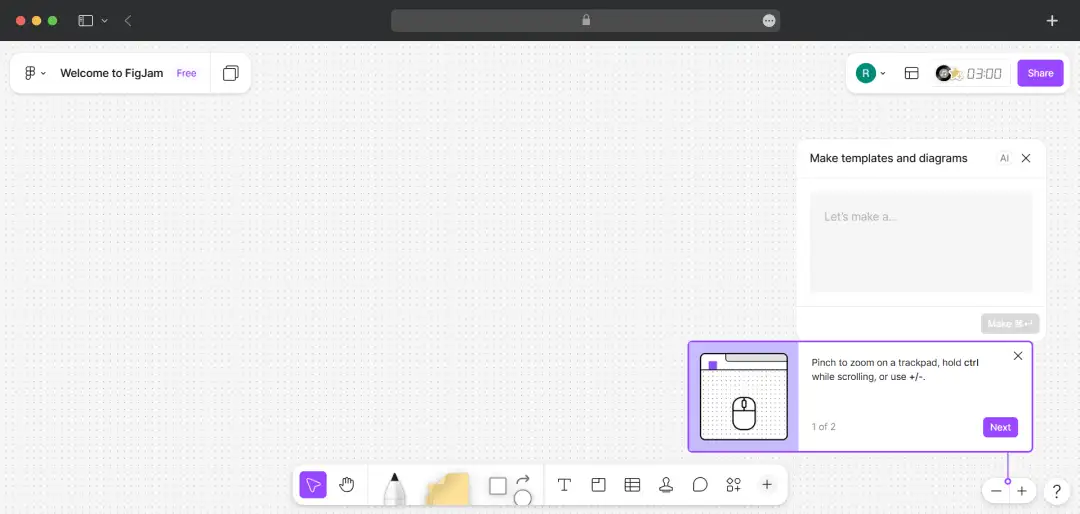
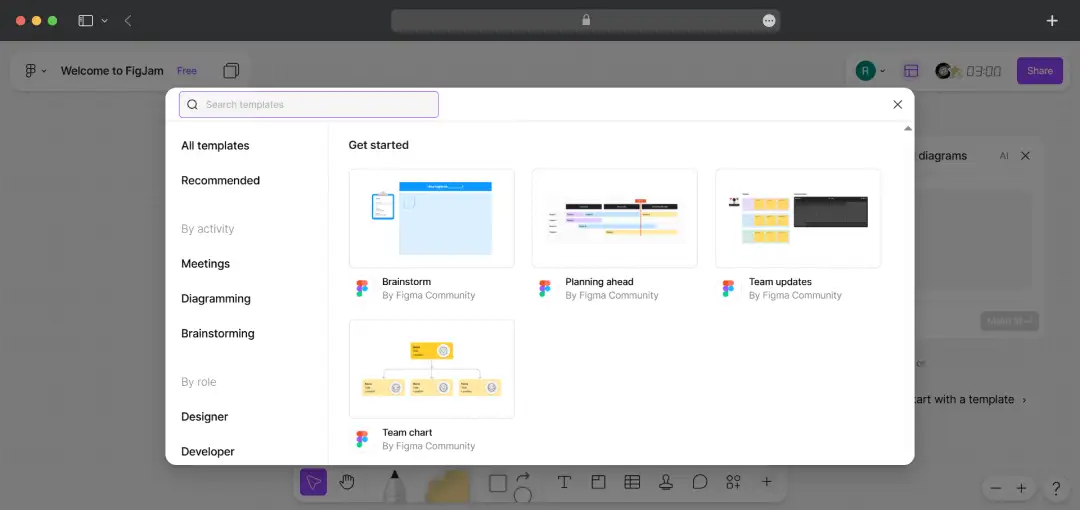
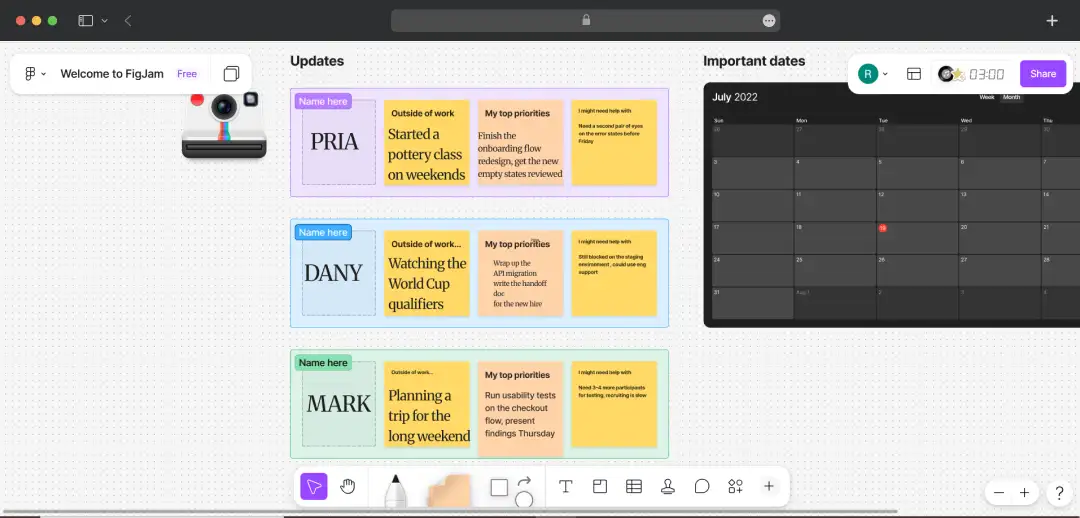
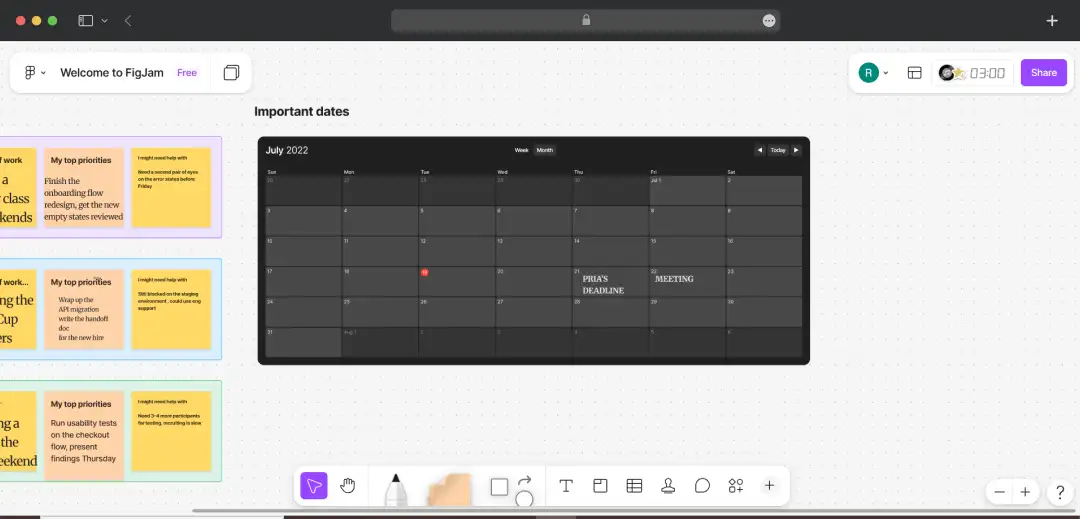
Past straight design, FigJam is a whiteboard for brainstorming and planning, Figma Slides handles presentations, and Figma Buzz helps marketing teams produce on-brand social and ad assets at scale. You won't touch all of them, but having brainstorm-to-launch under one roof cuts a lot of tool-switching.
Figma AI Tools: What They Actually Are
Open Figma's solutions menu and you'll count roughly a dozen AI tools, split across building websites, building apps, and designing: AI website builder, AI web design, AI landing page generator, AI app builder, prompt to app, AI code generator, AI UI generator, AI wireframe generator, AI prototype generator, and a few more.
These features put Figma in the same conversation as AI wireframe tools, AI design assistants, and other emerging workflows for speeding up the design process.
It reads like Figma shipped ten separate products. In reality, it didn't. Almost all of those names are landing pages pointing at the same two or three engines.
Here’s what these tools actually are-
| What the menu calls it | What it actually runs on |
|---|---|
| AI website builder, AI web design, AI website generator, AI landing page generator | Figma Make |
| AI app builder, prompt to app, AI code generator | Figma Make |
| AI design generator, AI UI generator, AI wireframe generator, AI prototype generator, AI UX design | Figma AI inside Figma Design, with help from Figma Make and the design agent |
1. Figma Make does most of the heavy lifting
You describe what you want, or point it at an existing frame, and it generates a working UI, a website, or a simple app. From there, you refine by typing more prompts or editing directly, connect a backend like Supabase to test with real data, and pull in your team's design library so everything stays on brand.
2. The “design with AI” tools mostly live inside the Figma Design tool itself
That's the in-canvas Figma AI you'll actually touch day to day: generating and editing a Figma image, boosting its resolution, renaming layers, and searching assets. It also includes Figma's new design agent, which drafts and remixes screens while following your existing components and tokens instead of inventing its own.
*One thing to budget for: all of this runs on AI credits now. Each plan comes with a monthly allowance, and a heavy Figma Make session can drain it faster than you'd expect.
Note: Figma Make is the genuinely useful part. It's quick for first drafts, prototypes, and throwaway landing pages, and a real shortcut for non-designers who just need something clickable. Treat it as a fast starting point, not a replacement for the designer who takes it the last mile.
Who is Figma for?
Figma started as a tool for UI designers, but that's no longer the full picture. Here's a quick breakdown of who actually uses it today and what they use it for.
| Who | What they use Figma for |
|---|---|
| Product & UX/UI designers | The core audience. Designing app and website interfaces, building design systems, and running usability tests on prototypes, this is what Figma was built for, and where it's strongest. |
| Distributed & in-house teams | Browser-based and multiplayer, so a Figma file works like a shared room, and designers, writers, and reviewers can all be in the same file at once. A big reason so many companies standardized on it for design collaboration. |
| Developers | Dev Mode lets engineers pull specs, assets, and code without pinging the designer for every detail, and the MCP server connects Figma to AI dev tools so the design system actually makes it into the codebase. |
| Product managers & founders | No design background needed to rough out an idea. Figma Make turns a described flow into a clickable prototype, useful for testing with users or investors before committing a real budget. |
| Marketing & web teams | Buzz keeps social and ad creative on-brand at volume, and Sites lets you publish a landing page or small marketing site directly from a design. |
Bonus Read: Top No-Code App Builders
Understanding Figma Pricing in 2026
The latest version of Figma continues to offer flexible plans for different types of users, with pricing based on the type of seat you need. Since March 2025, Figma has run on one seat per person, and the type of seat decides what that person can do.
There are three: a Full seat (access to everything), a Dev seat (Dev Mode, FigJam, and Slides), and a Collab seat (commenting and whiteboarding, but not full design). Viewer access is free on every plan, so stakeholders who only look and comment never cost you anything.
*Prices below are per editor, per month, billed annually.
| Plan | Price (billed annually) | Best for |
|---|---|---|
| Starter | Free | Solo designers, students, and anyone trying Figma out |
| Professional | Full $16 · Dev $12 · Collab $3 (per editor/mo) | Freelancers and small teams |
| Organization | Full $55 · Dev $25 · Collab $5 (per editor/mo) | Companies running several teams |
| Enterprise | Full $90 · Dev $35 · Collab $5 (per editor/mo) | Large orgs that need security and admin controls |
Few Pricing Notes-
- Students and educators can get Professional for free.
- AI now runs on credits, with Full seats getting roughly 3,000 a month on Professional, 3,500 on Organization, and 4,250 on Enterprise
- Heavy Figma Make users can run dry and need a top-up. And you can't buy a single product like Figma Make on its own; access always comes bundled with the seat.
Customer Reviews
How was your experience with the product?
Also Reviewed By Us