
Canva Review 2026 | The Design Tool That Won by Being Easy and Versatile
Canva has over 265 million monthly active users. Let that sink in.
That's not a niche tool for design hobbyists; that's a platform that has fundamentally changed how people create visual content. From Instagram posts to pitch decks to full-blown brand kits, Canva promises to make design accessible to everyone.
I'll admit, I've been one of those 265 million. I've used it to throw together last-minute presentations, build out social media templates, and rescue more than a few projects that had no business looking as polished as they did. And somewhere along the way, I stopped thinking of it as a shortcut and started wondering if it was actually just... good.
But popularity isn't the same as quality. So, is Canva actually good, or have we just settled for "good enough"?
This Canva review is my honest breakdown of the tool. I have covered all the important details, including Canva’s pricing, features, use cases, and much more.
Pros and Cons of Canva
Pros
- Free tier is genuinely usable, not a stripped-down teaser, 250,000+ templates, 5 GB storage, and real collaboration included
- Template library is unmatched in scale, 250,000 free templates and 3.6 million+ on paid tiers
- The drag-and-drop interface makes professional-looking output accessible to people with zero design training
- Real-time collaboration is as fluid as Google Docs, and ahead of Adobe in several practical ways
- Background Remover and Magic Resize hold up under real workflow conditions
- The Brand Kit feature keeps team output visually consistent without manual checking
- Single platform covers social media, presentations, documents, video, websites, and print without switching tools
- Mobile apps maintain feature parity with desktop, which is rare among design tools in this category
Cons
- Pro users get roughly 500 monthly AI credits across all Magic Studio tools combined, which heavy users will exhaust quickly
- Design depth falls short of professional tools, typography controls, vector editing, and print pre-press, which are all functional but not class-leading
- Brand Kit, approval workflows, and admin controls are paywalled, which limits the Free tier's usefulness for any kind of teamwork
- AI-generated outputs increasingly look recognisably Canva, which becomes a brand consistency problem at scale
- The Teams plan rebrand and price restructuring in 2024–2025 introduced real confusion about what a multi-user subscription actually costs
Canva Features | What Does this Design Tool Offer?
Canva is one of the best creative apps for designers, and its list of features totally proves its worth. After spending a considerable amount of time inside Canva, testing, building, and occasionally breaking things, it becomes clear that not every feature carries the same weight. What follows are the Canva features that held up in real-world use cases.
1. Massive Template Library (4.7/5)
The numbers tell the story: 250,000+ free templates and over 3.6 million on paid tiers, across every category from Instagram posts to investor pitch decks. The breadth is definitely exceptional, but the depth matters too.
Even within narrow categories like LinkedIn ad creatives or restaurant menus, Canva carries dozens of viable starting points. For non-designers, this is the single feature that makes the platform usable at all.
2. Magic Studio AI Suite (4.5/5)
Magic Studio is the umbrella for Canva's AI-powered tools: Magic Write for copy generation, Magic Design for instant template creation from a prompt, Magic Resize for adapting one design across formats, and Magic Eraser for cleanup. You can also use Canva AI image generator, a.k.a Magic Media, for AI image and video generation.
The credit system is the catch: Pro users get about 500 credits per month across the entire suite, and heavy AI use will burn through that allocation well before the monthly reset.
3. Background Remover (4.3/5)
The Background Remover is the single most-used Canva Pro feature, and it works as advertised. One click, clean cutout, usable for product shots, headshots, and design composites. The quality holds up against dedicated background removal tools, which is genuinely impressive for something bundled into a $15-a-month subscription.
4. Brand Kit (4.5/5)
Brand Kit stores your fonts, colors, logos, and brand voice in one place that's accessible from every design. For teams trying to keep output visually consistent across dozens of contributors, this is the feature doing the most behind-the-scenes work.
Pro unlocks unlimited Brand Kits; Teams adds the centralized Brand Hub with template locking and approval workflows.
5. Real-Time Collaboration (4.5/5)
Multiple users can edit the same design simultaneously, with live cursor visibility, in-context comments, and version history.
The collaboration model is closer to Google Docs than to Adobe's clunky asset-sharing approach, and it's one of the reasons Canva has displaced Adobe in marketing teams that prioritize working speed over output sophistication.
6. Cross-Platform Apps with Mobile Parity (4.7/5)
Canva runs on Windows, Mac, iOS, Android, and any modern browser, with feature parity that's genuinely close to identical across platforms. The mobile apps aren't a watered-down version of the desktop experience; you can finish a real design on a phone, which is rare in this category.
7. Canva Websites and Print Services (4.2/5)
Canva can publish completed designs as live websites with custom domains, or push them to Canva Print for physical merchandise, business cards, and posters. Neither service replaces a dedicated website builder or a professional printer, but for users who only occasionally need either, having them inside the same tool removes a real friction point.
Who is Canva Suitable For?
Canva’s appeal is broad, from the Canva AI video generator to the resume builder; the platform packs a vast variety of tools to cater to multiple user needs. Here’s a list of user personas where the Canva app can be a suitable choice-
| User Type | Why Canva Works for Them |
|---|---|
| Marketing teams at small to mid-sized businesses | Templates plus Brand Kit plus collaboration covers 90% of what these teams produce, social posts, decks, one-pagers, and ad creatives, without needing a dedicated designer. |
| Social media managers and content creators | Magic Resize alone justifies the Pro subscription for anyone producing the same content across multiple platform formats every week. |
| Small business owners and solopreneurs | A single Pro subscription replaces what would otherwise be three or four separate tools: design, basic photo editing, simple video and print collateral. |
| Educators and K-12 teachers | The free Canva for Education tier unlocks full Pro features at no cost, and the template library covers worksheets, lesson plans, and classroom visuals deeply. |
| Nonprofits with limited design budget | Canva for Nonprofits provides full Pro and Teams access free for verified 501(c)(3) organizations, which is one of the most generous offerings in the category. |
| Freelancers handling client design work | Pro covers most freelance scenarios well, with Brand Kit making it easy to maintain consistency across different client projects. |
Canva AI Products
Canva has been aggressively building out its AI toolkit, and the lineup has grown into something worth paying attention to. Most of these tools are baked directly into the editor, which means you don't need to jump between platforms to use them.
| AI Product | What It Does |
|---|---|
| Magic Layers | Separates and isolates elements within an image using AI, making it easier to edit complex visuals without starting from scratch. |
| Canva AI Assistant | A built-in AI chat tool that helps with design decisions, copy suggestions, and general creative direction, without leaving the editor. |
| Canva Code | Generates functional, embeddable code directly within a Canva design, useful for adding interactive elements without external tools. |
| Magic Resize | Automatically adapts a design to fit different dimensions and formats, saving the manual effort of rebuilding layouts from scratch. |
| Magic Animate | Applies contextually appropriate animations to design elements, turning static visuals into motion content with minimal input. |
| Magic Write | Canva's native AI writing tool for generating and refining copy — from headlines to captions, directly within the design canvas. |
| Translate | Detects and translates text within a design into multiple languages while preserving the original formatting and layout. |
| Magic Insights | Pulls performance data and analytics into Canva, giving creators a clearer picture of how their content is actually performing. |
| Magic Formulas | Uses AI to suggest and build formulas within Canva's data tools, reducing the friction of working with structured data in a design environment. |
How to Use Canva?
I'll use a presentation as the example here, it's one of the more demanding use cases, which makes it a fair test of what Canva can actually do. Here’s a quick Canva tutorial for you-
Step 1: Choose Your Design Type
Head to Canva's homepage and select the type of design you want to create. In this case, clicking on Presentations takes you to a dedicated landing page with a "Create a presentation" button.
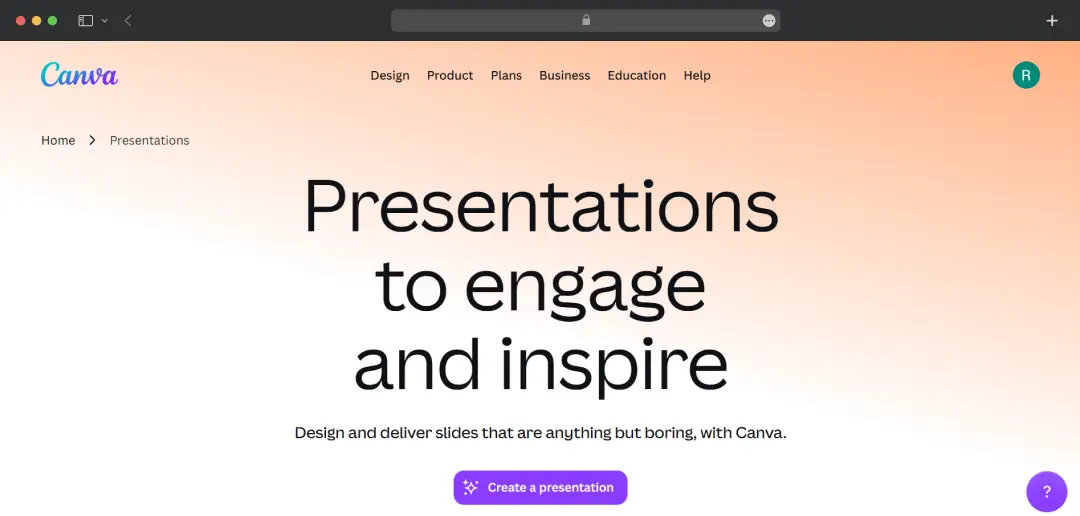
Once you're inside the editor, the left panel opens up with a templates tab ready to go, no setup required, no blank canvas panic.
Step 2: Pick a Template
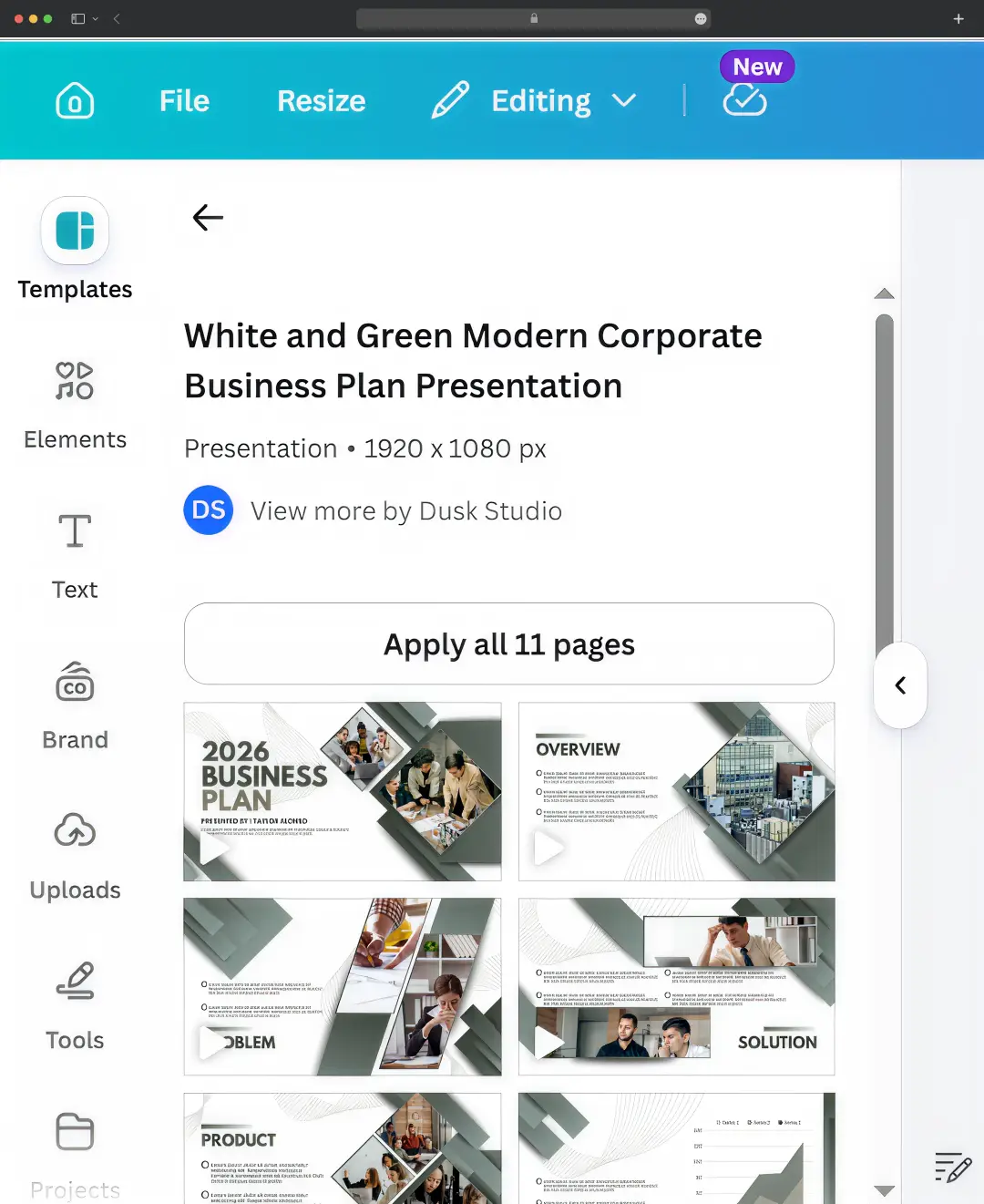
This is where most people spend more time than they expect to. Canva's template library is extensive, and the search function works well enough to narrow things down quickly. I searched for a business presentation and landed on the White and Green Modern Corporate Business Plan template, 11 slides, 1920x1080px, built by Dusk Studio.
Clicking Apply all 11 pages loads the entire deck into the editor at once, which saves the back-and-forth of importing slides one by one.
Step 3: Edit the Content
Once the template loads, every element on the slide is editable. Click on any text block and it opens up the full formatting toolbar at the top, giving you control over font, size, weight, alignment, and more.
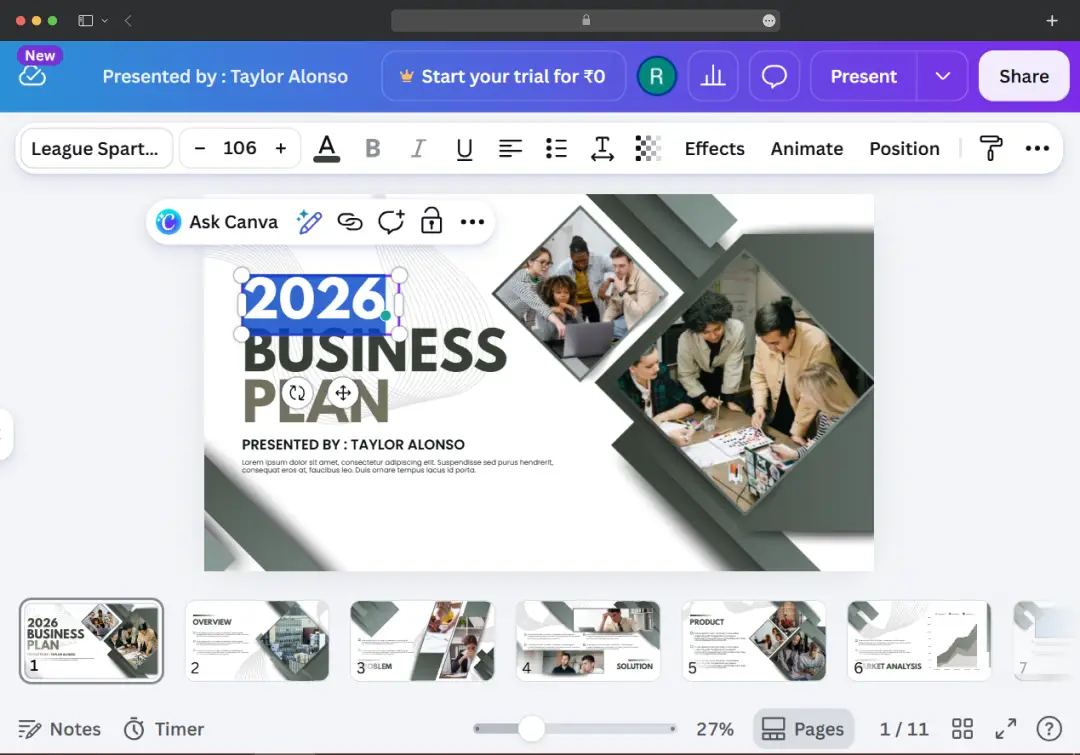
I clicked into the title slide to update the headline and presenter name, which took seconds.
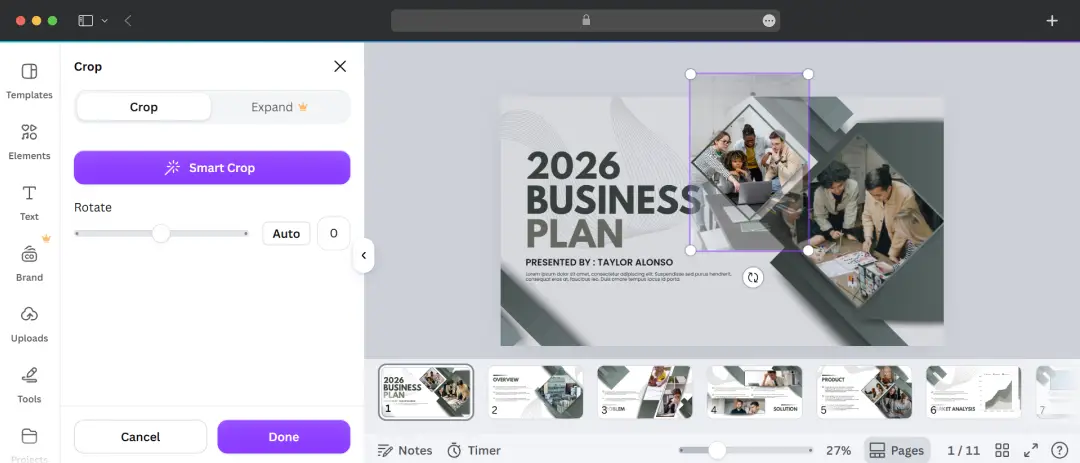
For images, the Canva app gives you a Smart Crop option that automatically adjusts how an image sits within its frame — useful when swapping out placeholder photos without having to manually reposition everything.
Step 4: Present Directly from Canva
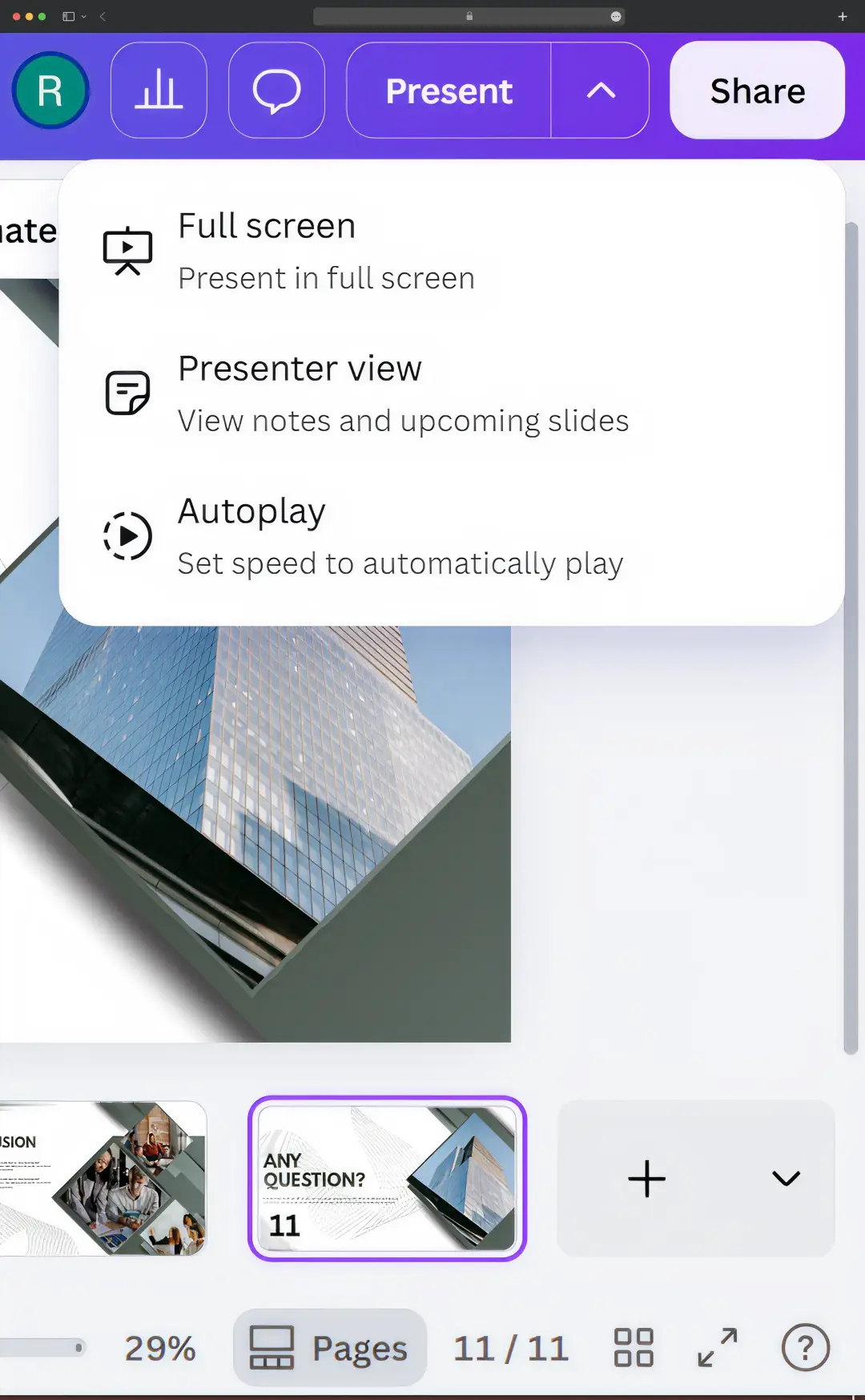
Once the deck is ready, hit the Present button in the top right. Canva gives you three options — Full Screen for a clean presentation view, Presenter View if you want to see your notes and upcoming slides while presenting, and Autoplay if you want to set a fixed pace and let it run.
Step 5: Share or Export
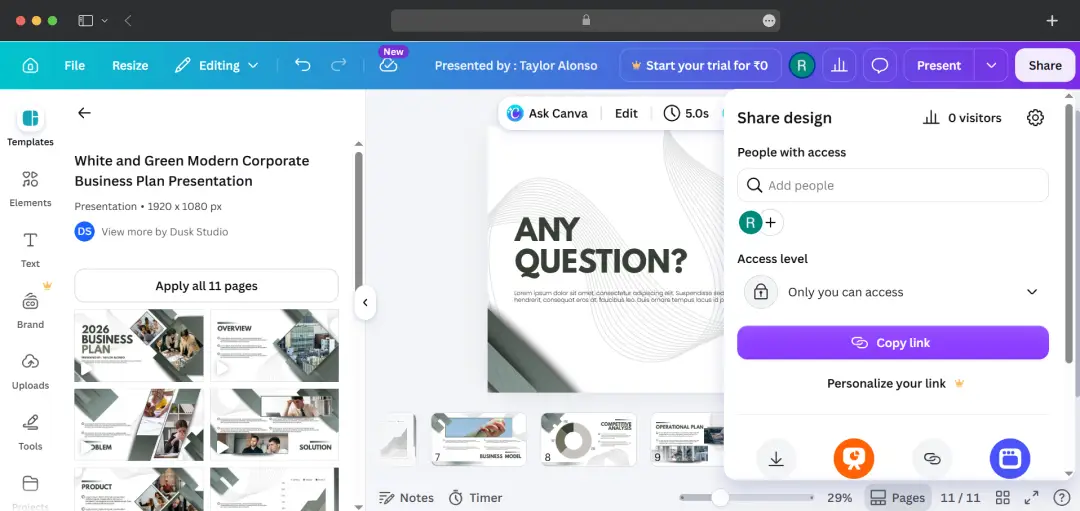
Clicking Share opens a panel where you can either invite collaborators by adding their email, adjust access levels, or simply copy a link to share the design directly.
The link sharing is particularly handy; anyone with the link can view the presentation without needing a Canva account, which removes a lot of friction when sending decks to clients or stakeholders.
Also Read: Best Presentation Software
Canva Pricing in 2026
Canva's pricing structure has gotten complex since 2024, and the messiness deserves to be acknowledged honestly. The platform raised Pro pricing in 2025, rebranded the Teams tier to Business in some regions, and restructured per-seat billing on the multi-user plan. Here's where it sits as of June 2026.
| Plan | Monthly Billing | Annual Billing | Best For |
|---|---|---|---|
| Canva Free | $0 | $0 | Students, hobbyists, occasional users, permanent, not a trial |
| Canva Pro | $15/month | $120/year (~$10/month) | Freelancers, solo creators, small businesses |
| Canva for Teams / Business | $15/user/month | $10/user/month | Marketing teams and collaborative groups (2-3 users minimum, depending on region) |
| Canva Enterprise | Custom | Custom | Large organizations needing SSO, SCIM, audit logs and a dedicated CSM |
| Canva for Education | Free | Free | Verified K-12 teachers and their students |
| Canva for Nonprofits | Free | Free | Verified 501(c)(3) organizations, up to 50 users |
*The Free tier is genuinely valuable and not a stripped-down trial. It's the only design tool at this scale that offers a permanent free version with meaningful functionality.
*Canva Pro went from $12.99 to $15 per month in 2025, which moved it closer to Adobe Express's $9.99 per month for individuals. The value gap that used to make Canva an obvious choice has narrowed.
Customer Reviews
How was your experience with the product?