
Is This the Only Desktop Media Suite You Actually Need? An Unfiltered Any Video Converter Review
Any Video Converter is one of those legacy names almost anyone who has handled video on a PC recognizes. But the reality is that basic format converters have become a dime a dozen, and most legacy software either fades out or slaps superficial "AI" labels onto basic features just to stay relevant in search rankings.
AVC took a much more aggressive route: completely rebuilding itself around heavy local processing, generative AI tools, and full media management. The real question isn't whether it can still flip an MKV into an MP4—that’s table stakes. The question is whether its new AI upscaling, device utilities, and editing features are polished enough to justify desktop space in a modern creative workflow.
Here is our hands-on breakdown of what works, what feels half-baked, and where the platform actually stands today.
Pros and Cons of Any Video Converter
Pros
- Natively handled obscure TS, MKV, and WEBM test files without requiring additional codec downloads.
- The free version lets you tackle basic conversions and downloads without slapping watermarks on your files.
- Native desktop processing means you can rip media and batch-convert files without relying on cloud servers.
Cons
- Running the advanced AI video tools demands serious processing power and can lag on older laptops.
- Gaining full access to every premium feature across the entire suite requires a fairly hefty investment.
Key Features of Any Video Converter
1. Core Video & Audio Conversion (4.5)
If you are currently hunting for the best mp4 converter tool, this is where the platform really shines. We evaluated its ability to handle everything from heavy MKV and AVI files to WebM and TS formats, and the conversion to MP4 is both snappy and reliable.
But it’s not just limited to video files. Extracting audio from lecture clips or podcasts using their Video to MP3 and MP4 to WAV tools works flawlessly, saving a ton of time on formatting headaches. Plus, if you need a rock-solid best 4k video converter, the desktop version handles high-resolution files locally without lagging out your machine.
2. Editing, Enhancement, Download, and Recording Capabilities (4.5)
Sometimes you don't need a massive, resource-heavy suite to get things done. For quick, practical edits, AVC legitimately acts as some of the most accessible best video editing software we looked into.
This toolkit lets you easily trim unwanted sections, merge multiple clips, and slap on subtitles or watermarks. Beyond just editing, the video compressor is a lifesaver when you need to shrink files for Discord or email without losing too much quality.
What really rounds out this section is their offline utility. The software features a built-in Video Downloader that lets you pull high-quality videos from over 1,000 sites for personal use. Pair that with a native Screen Recorder for capturing tutorials, walkthroughs, or quick visual notes, and you have a highly versatile offline toolkit right on your desktop.
3. Next-Gen AI Integration (4.0)
This is the area that genuinely surprised us. AVC is quietly positioning itself right alongside some of the best AI video editing tool contenders. To give you a clear picture of what they offer, here is a rundown of the AI tools currently packed into their suite:
- AI Generation: They offer a suite that rivals any best AI image generation tool, including an AI Image Generator, AI Video Generator, Text to Image/Video AI, AI Headshot Generator, and even a specialized Ghibli Video Generator.
- AI Video Enhancement: We tested the AI Video Enhancer on a grainy 480p clip and it intelligently upscaled it to 1080p, removing the pixelation artifacting seamlessly.
- AI Video Editing: Beyond basic cuts, they include an AI Video Enhancer (great for upscaling blurry footage), Video Stabilizer, Video Splitter, and seamless Video to Text transcription.
4. Audio Manipulation & Speech Tools (4.0)
During our research, the audio suite really caught my eye, especially for content creators. Their AI Audio to Text transcription is highly accurate, making it super easy to pull captions or notes from raw recordings.
We also explored their Vocal Remover, which cleanly separates vocals from instruments, proving why this suite is a strong contender among the Best Audio Editing Apps. They even support a text to audio tool workflow, giving you plenty of flexibility for multimedia projects and voice elements.
5. Trimming and Compression (4.0)
You don't always need heavy-duty software for quick, practical edits. Sometimes you just need to trim a clip, slap some subtitles on it, and compress it so Discord or Outlook doesn't reject the file size.
For basic cuts, merges, and watermarking, AVC acts as some of the most practical Video Editing Software we tested for daily, lightweight use. The video compressor tool is an absolute lifesaver. We shrank a 500MB test file down to a manageable size without turning the video into a pixelated mess.
6. Local Media Processing and Downloading (4.0)
Physical media and offline work are still a thing, and we made sure to test the DVD to MP4 local ripping feature. The desktop app handles large batch jobs natively without fuss, giving you complete control over output settings.
On top of that, there is a built-in video downloader that pulls high-quality video from over 1,000 sites, plus a screen recorder for capturing quick tutorials. It’s a very offline-friendly toolkit, which is a massive plus when you don't want to rely entirely on cloud processing.
Also Read: Best AI Watermark Remover Apps
First-Hand Testing Evaluation of Any Video Converter
The Free-Version Test
We wanted to see what Any Video Converter Free could actually accomplish without hitting a paywall. We tasked the software with prepping a bulky, unedited smartphone video for email sharing.
1. The File: A 4K resolution file shot on an iPhone 14, 40 seconds in length.
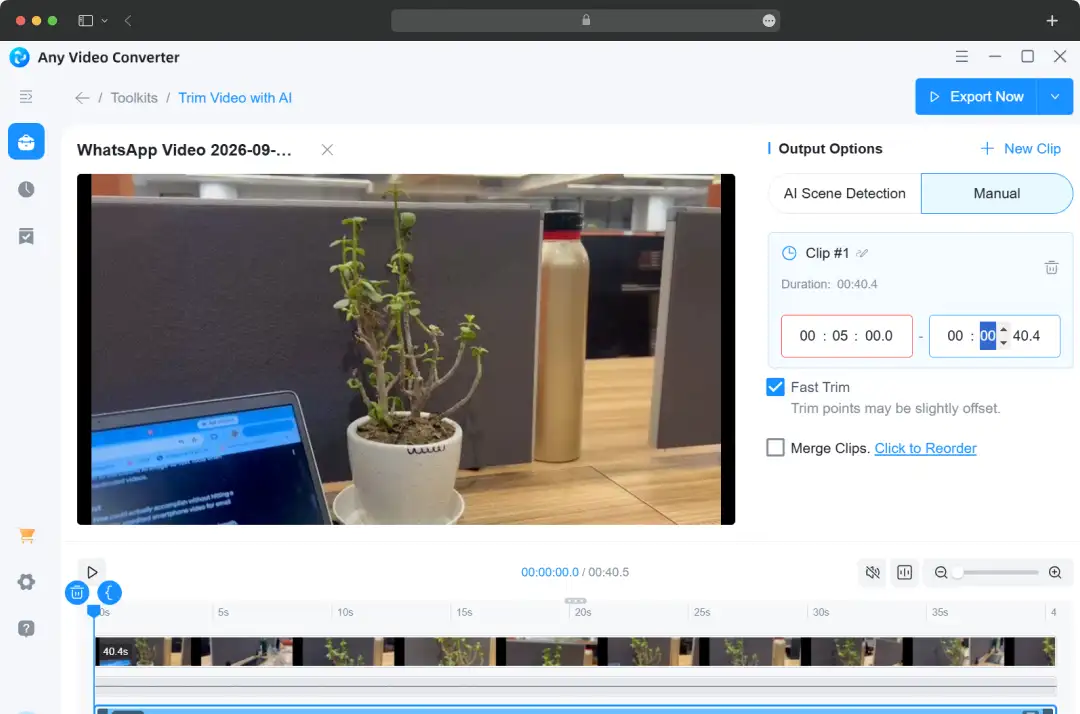
2. The Setup: From the main dashboard, we opened the "Video Trimmer." The timeline scrubbing was remarkably smooth, utilizing about 15% of our CPU. We clipped 5 seconds from the beginning and end.
3. The Compression: Instead of exporting right away, we routed it into the "Video Compressor" tool. We dragged the compression slider down to aim for a 2 MB file size.
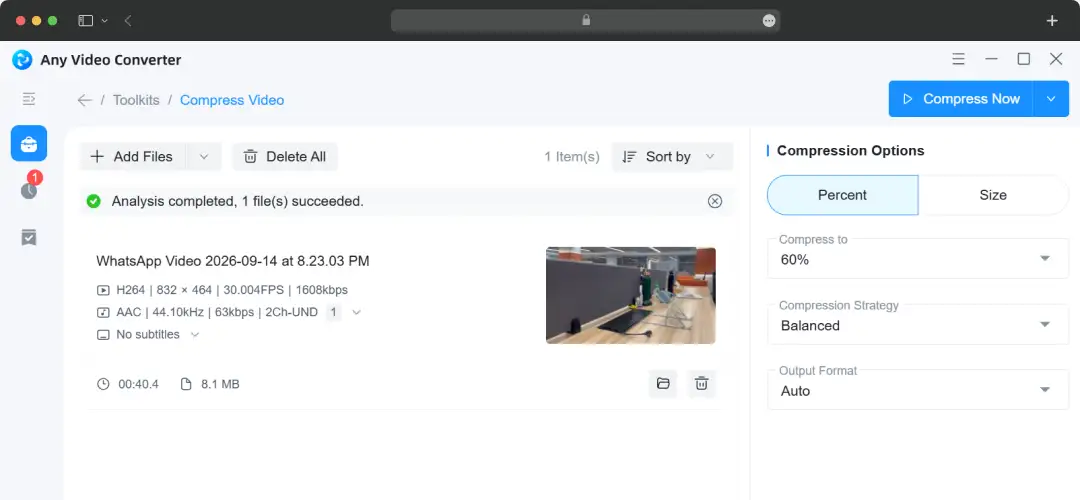
4. The Conversion: Finally, we selected MP4 (H.264) as the output format.
5. The Result: The entire process took roughly 45 seconds to export on an i7 processor with hardware acceleration on. The final file was 8MB and played smoothly. The free tier genuinely delivers on basic, daily workflow tasks.
Testing AI Video Quality Enhancement with AI Models
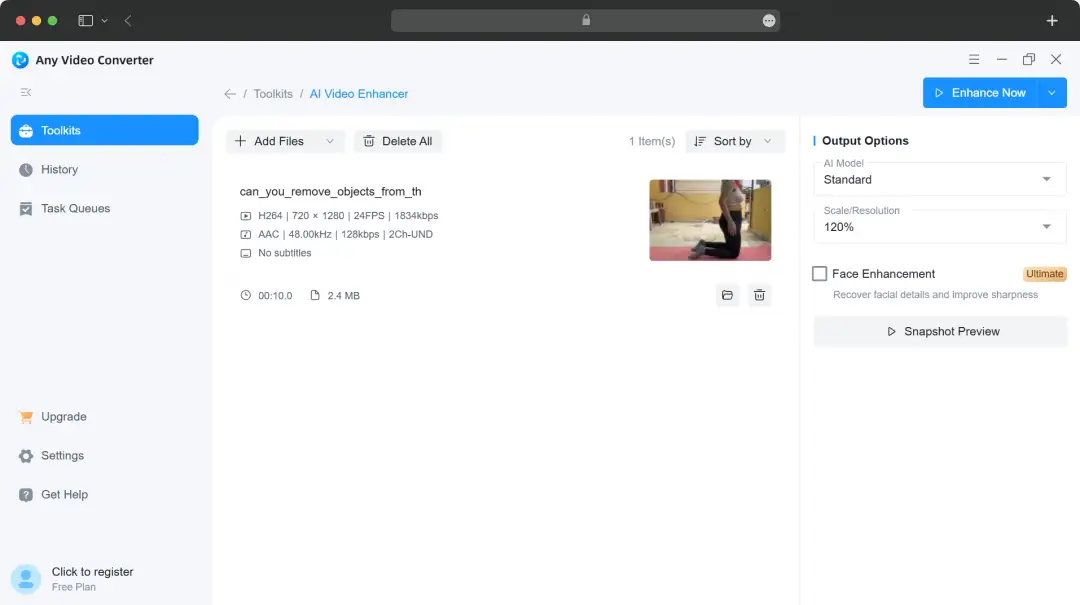
To evaluate their AI capabilities directly based on their official enhancement guide, we wanted to see if the AI Video Enhancer could actually salvage old footage without making it look artificially plastic.
1. Upload & Configure: We launched the AI Video Enhancer module and clicked "Add Files" to import our low-resolution clip.
2. Output Options: In the right-hand panel, AVC gives you precise control, offering upscaling options ranging from 100% to 400%, or direct resolution targets like 1080P to 4K. We selected the 4K output preset.
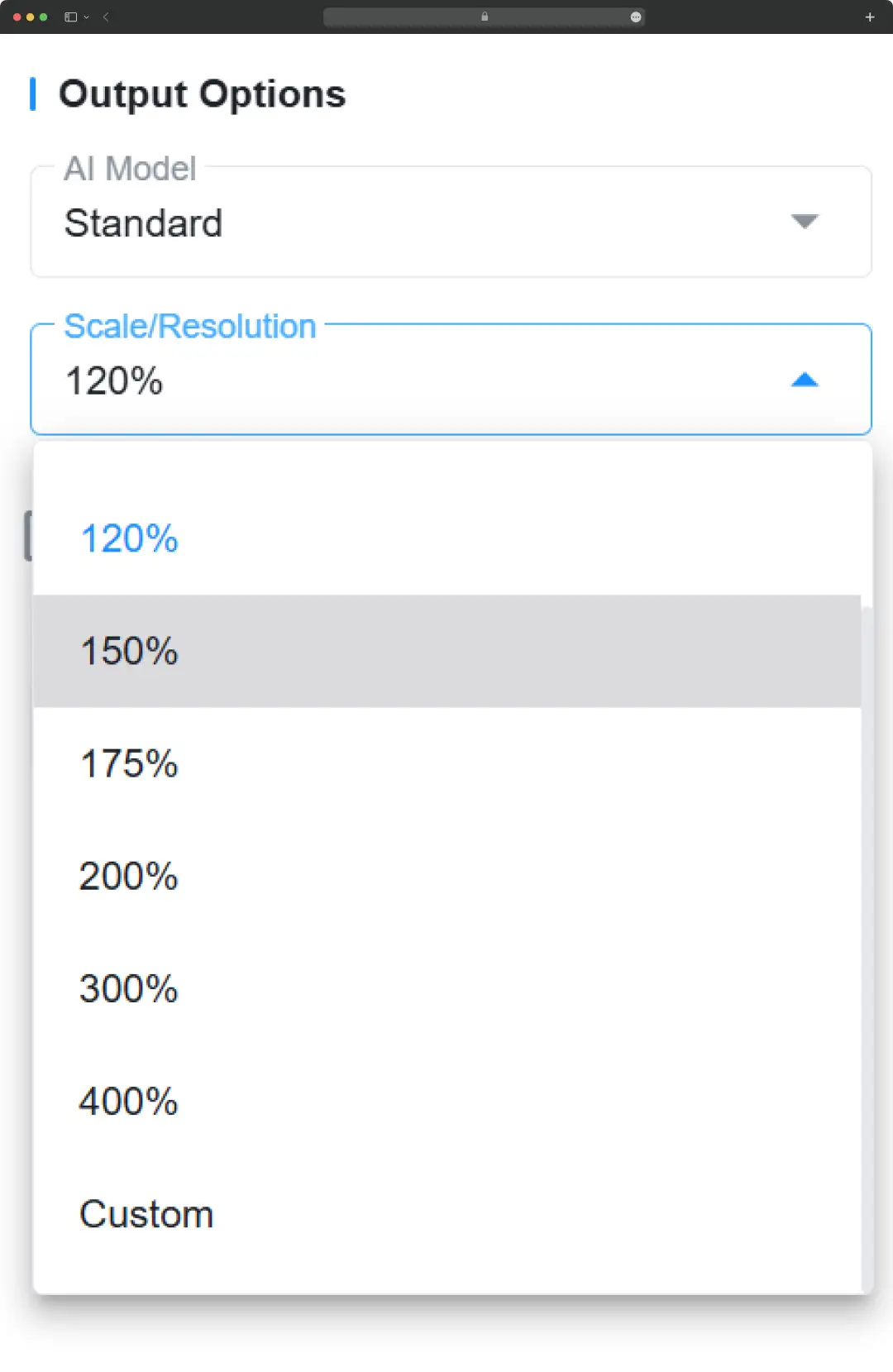
3. Preview Enhanced Frame: A massive time-saver here is the "Snapshot Preview" button. Before committing our GPU to a long render, we clicked this to generate a single-frame preview of the AI's effect, allowing us to ensure the model was accurately reconstructing edges and textures.
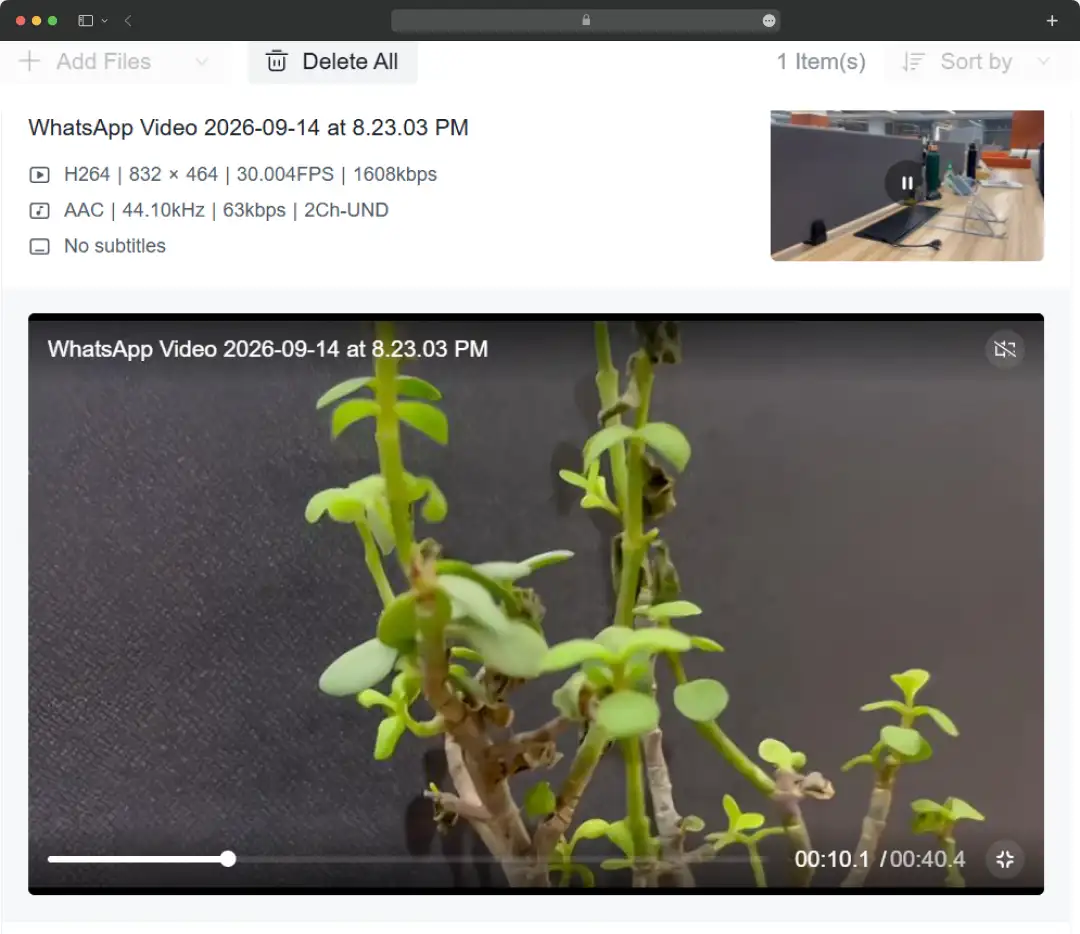
4. Enhance Now: Once satisfied with the preview, we hit "Enhance Now" and let the software process the file.
Bonus Read: Best Mac Photo Editing Software
How to Convert Video for Free with Any Video Converter
If you decide to take Any Video Converter Free for a spin, getting your files processed is incredibly straightforward. When we were running our test batches, we didn't have to dig through complex sub-menus or read through technical manuals just to figure out how to get a basic output.
Here is the exact step-by-step workflow we used to push our raw media files through their engine locally.
Step 1: Launch the Format Convert Tool
Once you have the software downloaded and installed, open the main interface and select the Format Convert option. This is your primary hub for all standard video and audio format swapping.
Step 2: Import Your Media Files
Click the Add Media File(s) button to browse your local hard drive. If you are dealing with a massive backlog of content like we were, you can click the dropdown next to the button to import an entire folder for seamless batch processing.
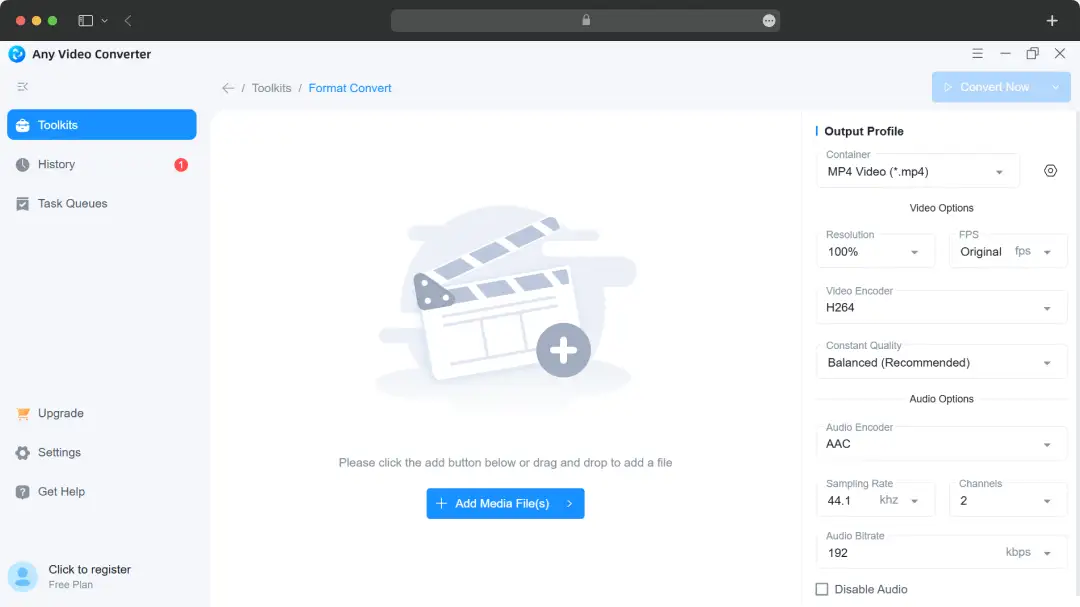
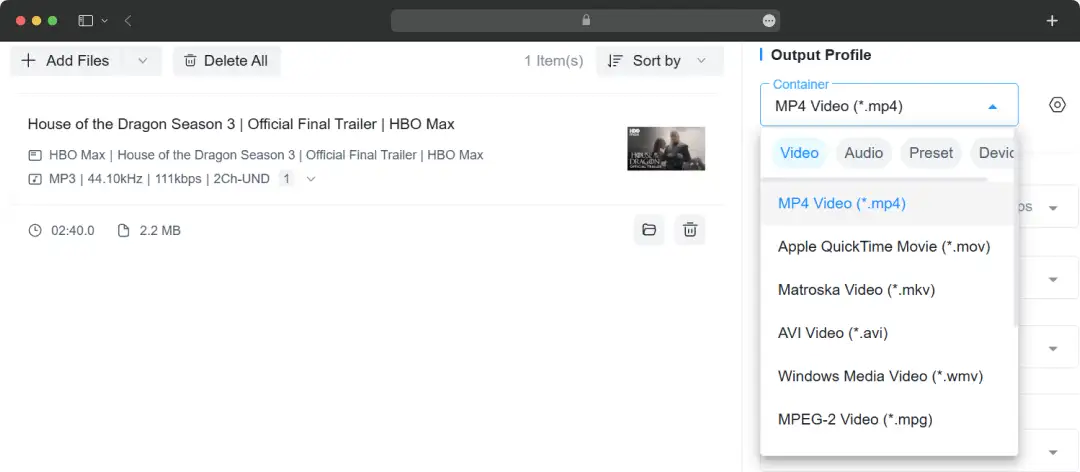
Step 3: Dial In Your Output Preferences
Navigate to the Output Profile section to lock in your final settings. We set our container to MP4 for maximum compatibility during testing, but you can easily choose from MKV, WEBM, MOV, and more. You can also dig into the advanced options here to tweak your frame rate, resolution, and audio encoder.
Step 4: Start the Conversion
Once your settings look solid, hit the Convert Now button. The software utilizes built-in GPU acceleration, which kept our editing machines from choking or overheating, even when we were exporting heavy, high-resolution test files.
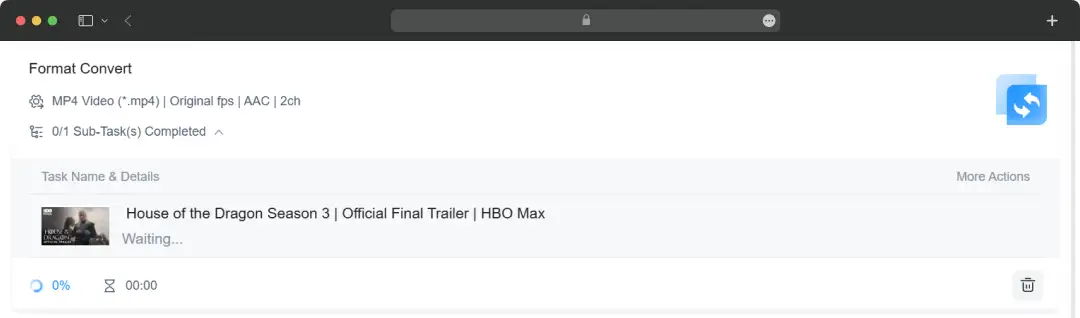
Once the progress bar wraps up, you have a clean, watermark-free file ready to go. It essentially gives you a zero-friction workflow that completely bypasses the headache of waiting for cloud-based browser converters to upload your footage.
Any Video Converter Pricing
If you are strictly hunting for the best video converter or need a solid best 4k video converter, the main software suite is divided into three flexible tiers. You can use Any Video Converter Free without dealing with intrusive watermarks on standard outputs.
| Plan | Monthly | Annually | Permanent (Lifetime) |
|---|---|---|---|
| Any Video Converter Free | $0 | $0 | $0 |
| Any Video Converter Pro | $19.95 | $39.95 | $49.95 |
| Any Video Converter Ultimate | $29.95 | $59.95 | $69.95 |
Customer Reviews
How was your experience with the product?