Screen sharing software eliminates these problems by delivering sharp visuals at any zoom level, enabling full remote control for direct troubleshooting, providing annotation tools for instant feedback, and automatically capturing meeting notes with AI.
To help you choose the right platform, I evaluated multiple solutions using both hands-on experience and systematic assessment. Google Meet has streamlined my team's daily presentations, while Slack's Huddles have become essential for quick screen sharing with colleagues without scheduling formal calls. For platforms I haven't used personally, I assessed them on maximum resolution, remote control capabilities, and annotation features. After this evaluation, I identified the 8 best software for screen sharing to match your specific workflow—whether that's remote IT support, client presentations, or team collaboration.
Top Screen Sharing Software: A Quick Comparison
To finalize my evaluation, I compiled all my research results into a single table. This comparison lets you quickly see each screen-sharing software’s key features and pricing information at a glance.
| Software | Best For | Key Features | Pricing |
|---|---|---|---|
| Zoom | Big presentations and webinars | • Simultaneous multi-screen • Advanced annotation and whiteboard tools • AI-powered meeting summaries |
Basic plan free Pro plan: $16.99/user/month or $13.33/user/month annually Business plan: $21.99/user/month or $18.33/user/month annually Enterprise plan: Contact sales |
| AnyDesk | IT support and remote control | • Sub-16ms latency with 60fps performance • Cross-platform mobile & desktop support • Background file transfer capabilities |
Solo: $28.90/month (annual billing) Standard: $49.90/month (annual billing) Advanced: $111.90/month (annual billing) Ultimate: Contact sales |
| Surfly | Customer support and co-browsing | • Zero-download web co-browsing • Enterprise security with data masking • Huddle Mode for multi-user interaction |
Pricing available on request |
| Google Meet | Google Workspace teams | • Present directly from Docs/Sheets/Slides • 500% zoom for detailed content • Co-presenter slide control |
Included in Google Workspace Free plan available Starter: $8.40/user/month or $7 annually Standard: $16.80/user/month or $14 annually Plus: $26.40/user/month or $22 annually Enterprise Plus: Contact sales *Pricing may vary |
| Microsoft Teams | Microsoft 365 organizations | • Cameo feature for broadcast-style presentations • Live camera feed transitions • Integrated digital whiteboard |
Free plan available Personal: $9.99/month or $99.99/year Family: $12.99/month or $129.99/year *Business & enterprise plans available |
| Slack | Quick internal collaboration | • Instant Huddles • AI-generated meeting summaries • Automatic thread archiving |
Free plan available Pro: $8.75/user/month ($4.38 with current offer) Business+: $18/user/month ($9 with current offer) Enterprise+: Contact sales |
| GoTo Meeting | Enterprise reliability | • 99.999% uptime guarantee • Browser-based, no downloads • Remote keyboard & mouse control |
Professional: $14/user/month annually ($12 after discount) Business: $19/month annually ($16 after discount) Enterprise: Contact sales |
| TeamViewer | Enterprise IT and AR workflows | • Remote 4K device access • AI-powered endpoint monitoring • AR solutions for industrial use |
Remote Access: $24.90/month annually Business: $50.90/month annually Premium: $112.90/month annually Corporate: $229.90/month annually Enterprise: Contact sales |
Read Less
List of the Best Screen Sharing Software
Table of Content
Recent Topics
Related Topics


Zoom
Pros & Cons
Pros
- Offers customizable options like limiting frames per second for low bandwidth
- Enables collaborative annotation directly on the shared screen or whiteboard
- Permits multiple participants to share their screens simultaneously
- Allows sharing of specific applications only, preserving desktop privacy
Cons
- May experience a glitch when you join a meeting in third-party tools
- Its web app offers limited screen control options
Why You'll Love It
Zoom's AI Companion 2.0 handles all meeting documentation automatically. It creates agendas, generates live summaries during calls, and captures action items, so you can focus on the meeting, not note-taking.More about product
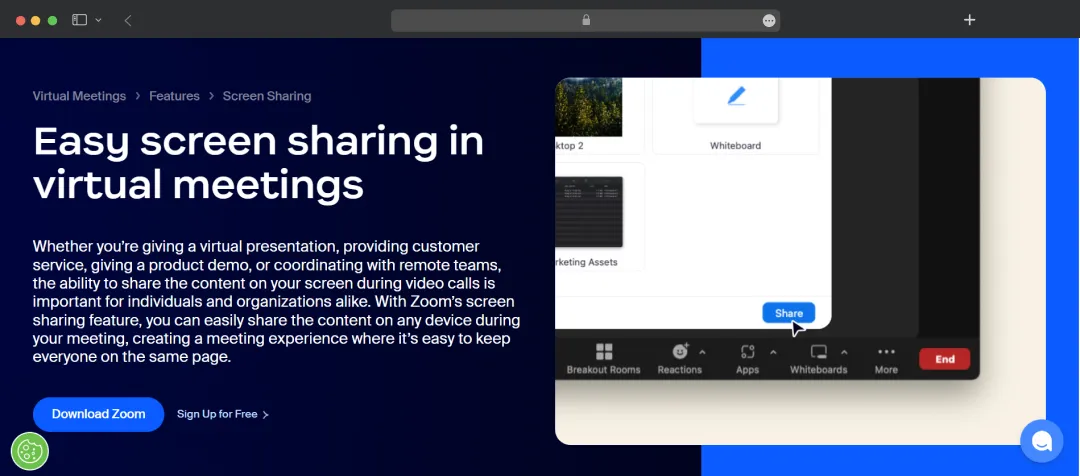
Zoom's screen-sharing is a part of the virtual meeting module that turns a simple video call into an interactive workspace. The level of customization is a major differentiator; you can share an entire desktop, a single application for privacy, or even just a pre-selected portion of the screen. This flexibility extends to its core collaboration tools, which include robust annotation features for all participants to draw or highlight content during screen sharing. You can also collaborate on a document in real time to streamline the communication.
Another standout is its simultaneous sharing, which lets multiple participants share content at once to boost collaboration. In a recent design review, my team used this feature to compare two app mockups side-by-side in real-time, which was far more efficient than swapping presenters. It also handles media exceptionally well, with dedicated options to share computer audio and optimize for full-screen video, ensuring smooth, high-frame-rate playback for all attendees. I also found its AI companion feature very helpful, as you can summarize your meetings in notes while screen sharing.
Also Read: 9 Best Video Conferencing Apps of 2025

AnyDesk
Pros & Cons
Pros
- Delivers latency-free, high-performance desktop sharing
- Offers flexible deployment as a cloud or on-premises solution
- Provides full mobile support for cross-platform access and control
- Includes built-in collaboration tools like a virtual whiteboard and text chat
Cons
- May not be suitable for simple meetings
- The REST API configuration might be difficult for some users
Why You'll Love It
AnyDesk is one of the best screen-sharing software that offers complete keyboard and mouse takeover, not just simple screen sharing. This core feature enables deep, responsive control, allowing work on a remote device with no perceptible lag.More about product
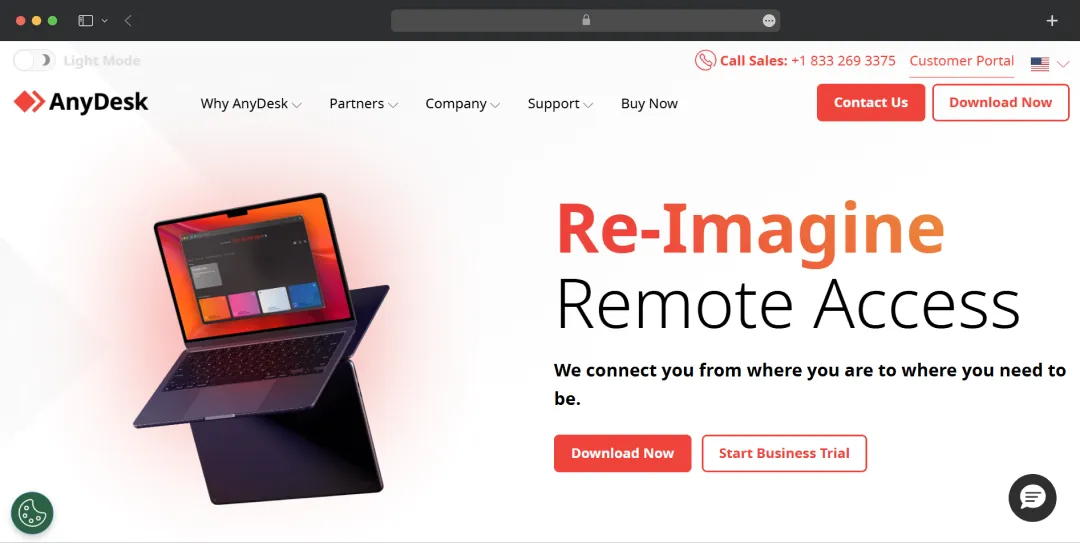
AnyDesk is primarily for technical support, remote access, and managing remote devices, and its entire platform is built to serve these functions with speed and security. On the security front, it offers a robust suite of features. Two-factor authentication ensures only authorized users can initiate a connection, while whitelisting lets administrators block all attempts except from a pre-approved list of trusted devices. For in-session confidentiality, I liked its "black screen" privacy mode, which blanks the remote monitor. This is balanced by customizable screen frames, which place a visible border on the screen to notify the remote user that they are being accessed clearly.
Beyond access, it includes features for real-time interaction. A built-in text chat allows communication during or after a session, while the virtual whiteboard enables on-screen drawing to visually guide a remote user. For administrators, the platform offers powerful tools. The File Manager is a significant efficiency boost, allowing file transfers to run in the background, and the session recording feature is critical for compliance and training. This administrative power extends to configurability, allowing teams to use group policies to centralize user management or to integrate AnyDesk directly into existing software via its REST API.

Surfly
Pros & Cons
Pros
- Builds customizable collaborative journeys for different use cases
- Offers advanced collaboration like "Huddle Mode" and real-time PDF editing
- Provides deep security with data masking and enterprise compliance (ISO, HIPAA)
- Integrates with major CRMs (Salesforce) and support widgets (Zendesk, Intercom)
Cons
- Lacks full desktop control; it is focused on web-based content
- Its chat features are not as advanced as other screen-sharing tools like Zoom
Why You'll Love It
Surfly excels at secure, interactive co-browsing. It lets your agents join a customer's web session in real time to provide support or demos, with a single click and no downloads required.More about product
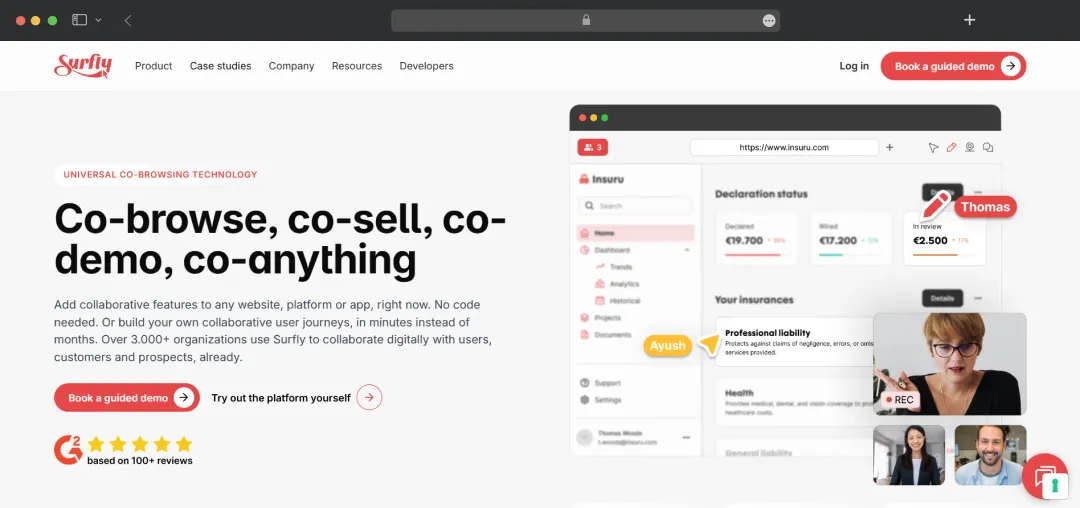
In my evaluation, Surfly is a powerful screen-sharing software that helps to collaborate on any website, platform, or app, often with no code required. This makes it ideal for delivering interactive product demos or onboarding new customers. It can be deployed in two ways: embedded directly into a website and integrated with support widgets like Intercom, or you can simply enter a URL to generate a secure, shareable link for your customers. In either case, the user joins from any device with a single click. Once in a session, it's fully interactive. You can highlight elements on the page or use fine-grained control to switch the mouse to the other person. A key feature of support is its ability to mirror the screen size, so you can see exactly what the recipient sees on a mobile or tablet.
Where it really advances is its other collaboration features. It includes video and text chat, as well as real-time PDF file sharing and annotation. Surfly's camera-sharing feature is also a standout, offering on-screen annotations for real-time guidance, device support, or KYC processing. Huddle Mode is another useful feature that removes the single-presenter limit, allowing all participants to interact with the content simultaneously, much like a Figma or Miro board. All this is wrapped in enterprise-grade security. Surfly's masking features can automatically hide sensitive data (like credit card fields) from the user's view, ensuring the session remains compliant with HIPAA, ISO 27001, and SOC 2.

Google Meet
Pros & Cons
Pros
- Allows you to choose between sharing your complete desktop, a particular window, or a single browser tab
- Allows co-presenters to control Google Slides from within Meet
- Supports live annotations on shared content during a presentation
- Offers to join meetings directly from the interface of Docs, Sheets, and Slides
Cons
- Audio sharing is restricted to Chrome tabs only
- The built-in whiteboard is not as advanced as Zoom's
Why You'll Love It
Google Meet excels as the best software for screen sharing for Google Workspace users due to its ability to present directly from a Doc, Sheet, or Slide. This eliminates app-switching and keeps the meeting flow seamless.More about product
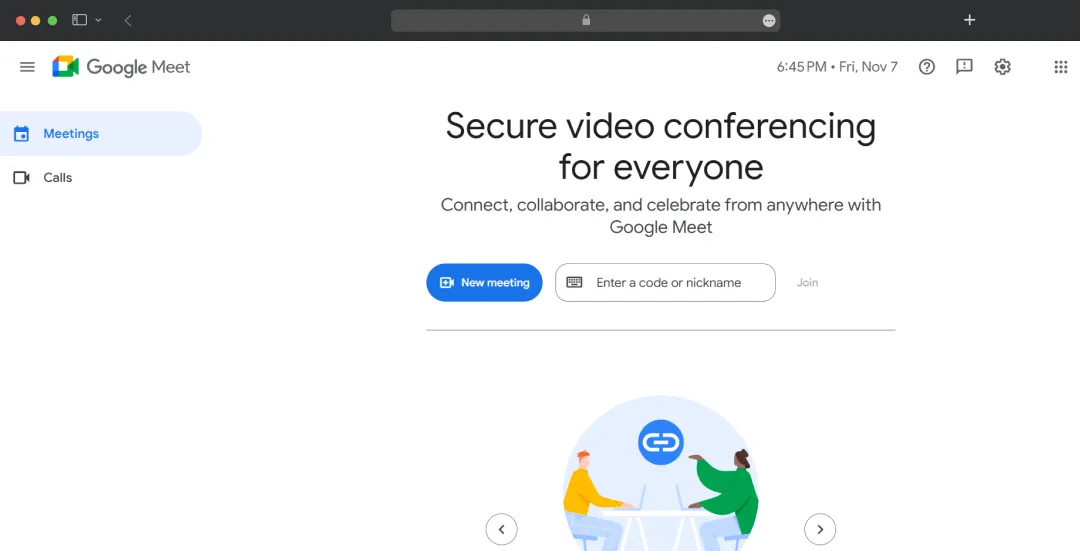
Google Meet’s screen sharing features are for simplicity and efficiency, especially for teams already using Google Workspace. The platform allows for collaboration within the meeting itself. For example, you can appoint co-presenters to give them control over a Google Slides presentation. During any presentation, the host and appointed co-annotators can use annotation tools to highlight key points. I have used this feature with my team to brainstorm content ideas directly on a shared document, which is great for live collaboration. It also lets you present directly from Docs, Sheets, or Slides with a single click without any need to switch apps.
The platform offers thoughtful controls for both the presenter and the viewer. Presenters can scroll and zoom within their presentation tile up to 500% to focus on specific data, while viewers can enlarge the shared content with one click without losing sight of other participant tiles. It is important to understand the free tier's limitations: meetings are capped at 100 participants, and while users can join breakout rooms, they cannot create them without a paid Workspace edition.
Microsoft Teams
Pros & Cons
Pros
- Allows any participant to share their screen, promoting inclusion
- Offers deep collaboration on shared content with notes, ink, and reactions
- Provides granular control over what is shared (desktop, window, or app)
- Integrates a digital whiteboard for live, saved brainstorming sessions
Cons
- May not be suitable to share the entire desktop screen
- May glitch occasionally when using the brainstorming tool
Why You'll Love It
Microsoft Teams is one of the best software for screen sharing with its Cameo feature. It lets a presenter embed their live camera feed directly into their PowerPoint slides, creating a professional, broadcast-style presentation.More about product
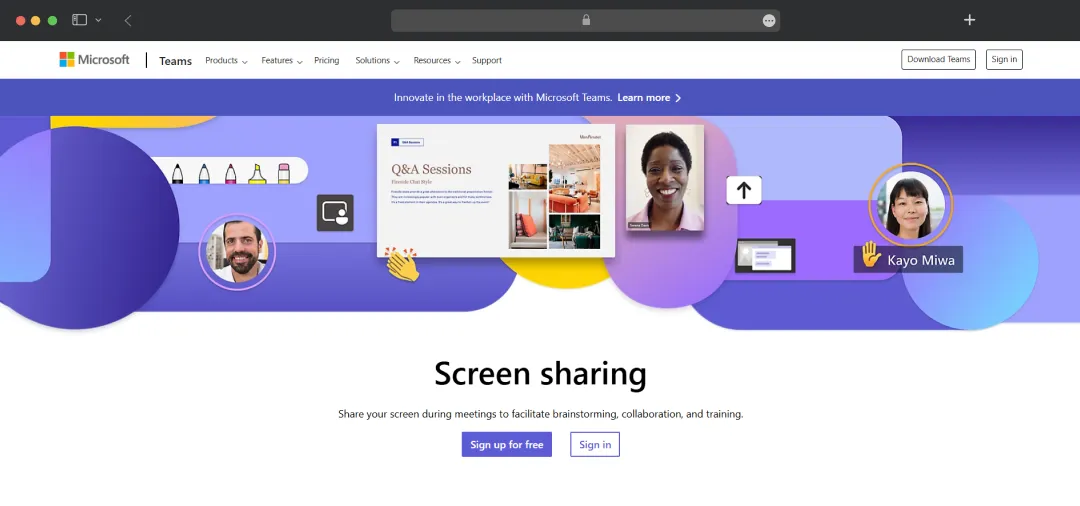
Microsoft Teams builds its screen sharing on a foundation of deep collaboration, letting you share your screen from any device, including a computer, tablet, or phone. It provides granular control, letting presenters show their entire desktop, a single app, or just a presentation, with the option to include system audio for video playback. The platform keeps presentations dynamic by letting presenters transition seamlessly and allowing co-presenters to control the slide deck themselves. Presenters also get key annotation tools to direct the audience's focus: a virtual laser pointer to draw attention without permanent marks, a highlighter for emphasizing text, and a pen for circling content or adding temporary notes.
For me, the standout presentation tool is Cameo. This feature embeds the presenter's live camera feed directly into a PowerPoint slide. A presenter can then apply the same effects to their camera feed, including formatting, transitions, and styles. Beyond slide-based sharing, Teams offers a digital whiteboard for real-time brainstorming that automatically saves your work for future reference.

Slack
Pros & Cons
Pros
- Integrates directly into existing channels and direct messages
- Uses AI to automatically generate meeting notes and summaries
- Allows up to two people to share their screens at the same time
- Automatically saves all shared links and messages in a dedicated thread
Cons
- Does not offer a screen recording feature
- Huddle calls pop ups within the chat may impact the ongoing work
Why You'll Love It
Slack's standout feature is Huddles, which enables users to launch a spontaneous audio meeting and share their screen instantly, directly from any channel or direct message.More about product
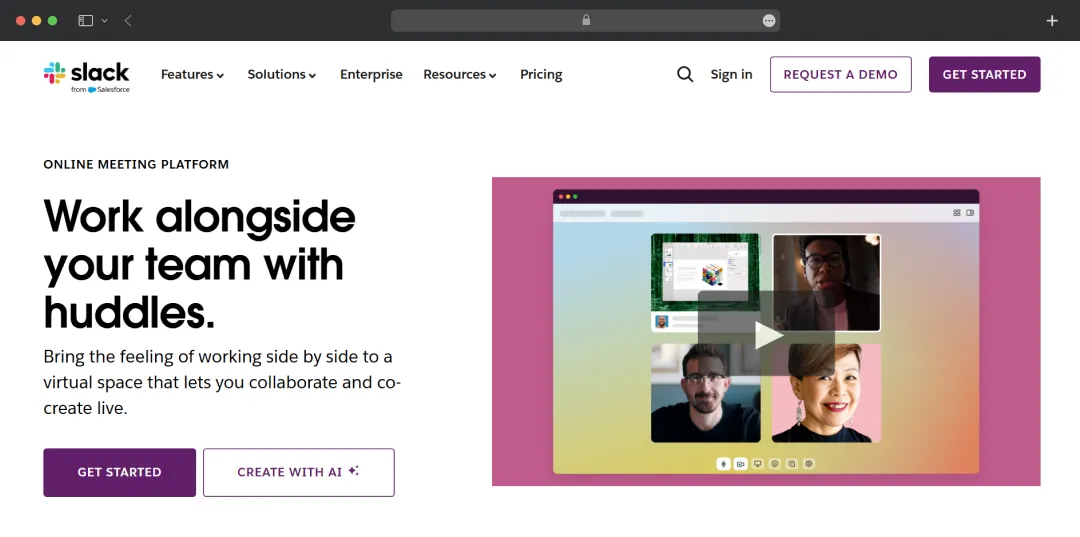
Slack is a team communication platform that integrates messaging, file sharing, and collaboration tools into a unified workspace. It offers screen sharing through its Huddles feature, enabling spontaneous audio and video conversations directly within channels. Huddle's main advantage is its ability to handle quick, unscheduled collaborations. Instead of scheduling a call, you can instantly start a live audio conversation directly within any Slack channel or DM. Team members in that channel see that the Huddle is active and can simply join or leave as needed. The real power is that once connected, anyone in the huddle can immediately add video or share their screen to provide context. During the Huddle call, up to two people can share their screens at the same time—ideal for comparing work—and participants can draw directly on a shared screen to provide instant, visual feedback.
A standout feature is the integrated AI that takes notes. It generates a summary of key points and action items after the call, ensuring no one misses a decision. This works in tandem with the huddle's persistence: every link, document, and message shared is automatically saved in its own thread, creating a permanent, searchable record. The tool also includes expressive touches like emoji reactions and colorful backgrounds to keep the quick, informal chats lively.

GoToMeeting
Pros & Cons
Pros
- Offers up to 25 simultaneous video streams at 720p
- Provides keyboard and mouse control for remote troubleshooting
- Supports screen sharing directly from both Android and iPhone
- Offers a no-download option for hosts or participants to join a session
Cons
- Drawing tools may lag sometimes during the meeting
- Lacks AI-powered features such as chat analysis, as found in competitors like Slack
Why You'll Love It
GoTo Meeting is defined by its enterprise-grade reliability. Its standout feature is the 99.999% uptime guarantee, making it the most stable platform for critical, high-stakes meetings and client presentations.More about product
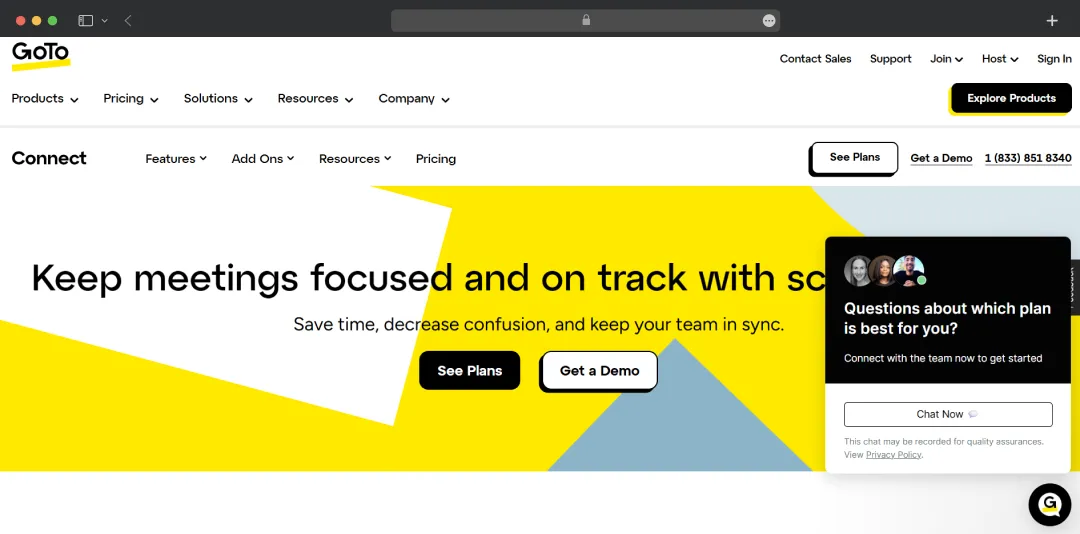
GoTo Meeting is a great tool for video conferencing, as both hosts and participants can launch and join meetings directly from their browser with a single click. I particularly liked the control it offers for its screen-sharing process, allowing users to choose exactly what they share (desktop, email, or a single application) to prevent the accidental display of private information. Furthermore, its mobile support is robust, offering seamless screen sharing from both Android and iPhone devices.
This screen-sharing software's interactive tools are impressive. The drawing tools allow users to markup, highlight, edit, and modify documents in real-time. For remote support, the tool offers keyboard and mouse control, letting the presenter pass control to another participant. With its robust organizer controls, you can easily start/pause screen sharing, mute attendees, and pass the presenter role. The platform streamlines collaboration with presenter switching, allowing any participant to take the floor instantly without explicit permission. It prioritizes safety and security to help keep data private during screen-sharing sessions. To help users work from "anywhere," it lets users apply custom backgrounds to the webcam feed.

TeamViewer
Pros & Cons
Pros
- Provides unattended remote access, crucial for IT support and server maintenance
- Supports 4K video resolution for high-fidelity screen quality and design work
- Offers AR solutions (Frontline) for visual training and remote maintenance
- Integrates AI (Remote/DEX) for automating fixes and generating actionable insights
Cons
- The wide suite of tools can be overwhelming for users needing basic desktop sharing
- Requires a dedicated desktop software installation for full remote control
Why You'll Love It
TeamViewer's core strength is its remote access to devices with 4K resolution support, making it the definitive choice for IT teams needing to perform seamless, high-quality troubleshooting and maintenance on remote devices.More about product
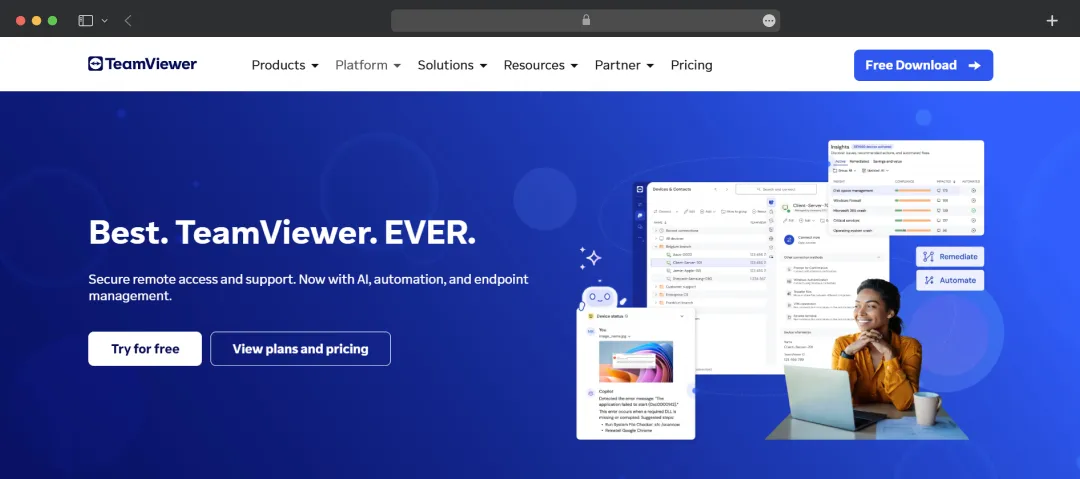
TeamViewer is a platform that moves beyond simple desktop sharing into comprehensive enterprise administration and augmented reality workflows. The core TeamViewer Remote suite focuses on secure remote access and support, enhanced by TeamViewer Intelligence, which uses AI to accelerate work and find fixes faster by providing real-time and historical data visibility across endpoint security, networking, and performance. TeamViewer Tensor is engineered specifically for the enterprise, serving as a 360° cloud-based solution for onboarding, managing, and monitoring mobile devices across the entire network, while providing comprehensive security and compliance tools.
The platform's advanced monitoring capabilities are evident in TeamViewer DEX (Digital Employee Experience). It offers insights into the performance of enterprise apps and devices to identify and fix issues and reduce downtime. For specialized industrial needs, TeamViewer Frontline is often considered the best software for screen sharing in Augmented Reality. It connects frontline workers to procedures using AR to optimize core tasks like Vision Picking in warehouses and Assembly/Production (Make) with step-by-step visual instructions. The suite also includes Frontline Assist, which allows experts to guide workers remotely by seeing what they see and using live annotations for instant troubleshooting.
Conclusion
Choosing the right screen sharing software isn't about finding the "best" tool—it's about matching capabilities to your workflow. The platform used for remote IT support will differ from one optimized for collaborative team meetings. Before committing, test your top choices under real working conditions, not just marketing demos. Most platforms offer free trials; use them to evaluate performance with your actual use cases, paying close attention to how each handles your specific requirements, like mobile access, multi-participant control, or integration with your existing tools.
The platforms in this guide represent the leading solutions in screen-sharing technology. Select the one engineered for your primary use case, and you'll gain a competitive advantage in how efficiently your team collaborates remotely.
We cut through the deafening digital noise to find what truly works. Every product on our list survives a relentless, hands-on analysis—no exceptions. We do the grunt work to deliver verified, trustworthy recommendations, so you can choose the right tools with absolute confidence.
- Products Reviewed - 4,000+
- No. Of Experts - 20+
- Categories - 65+
Frequently Asked Questions
What is the top screen sharing software for remote teams?
The top screen sharing software depends on your primary use case. Zoom excels for presentations with simultaneous sharing and annotation tools. TeamViewer leads for IT support with 4K resolution and unattended access. Microsoft Teams offers the best integration for Microsoft 365 users with features like Cameo.
How do I choose the right screen sharing software?
Choose screen sharing software based on your primary workflow. For remote IT support, prioritize low latency and remote control (TeamViewer, AnyDesk). For presentations, focus on annotation tools and stability (Zoom, Google Meet). For internal collaboration, select platforms integrated with your existing tools (Slack, Teams).
What features should I look for in screen sharing software?
Prioritize resolution quality for visual clarity, low latency for responsive control, annotation tools for collaboration, remote control capabilities for troubleshooting, AI-powered note-taking for automatic summaries, and security certifications for data protection. Match features to your primary use case rather than choosing based on feature count alone.
Can I share my screen from mobile devices?
Yes, most modern screen-sharing platforms support mobile sharing. Google Meet, Zoom, Microsoft Teams, Slack, and GoToMeeting all enable screen sharing from iOS and Android devices. However, annotation tools and remote control features are typically more limited on mobile compared to desktop applications.
What's the difference between screen sharing and remote control?
Screen sharing lets others view your screen, while remote control lets someone else operate your device using their keyboard and mouse. TeamViewer and AnyDesk specialize in remote control for IT support. Zoom and Google Meet focus on screen sharing for presentations. Choose based on whether you need observation or interaction.


We've got more answers waiting for you! If your question didn't make the list, don't hesitate to reach out.