#News

Not customized to iOS 26? Here’s How to Personalize Your iPhone Home Screen with Liquid Glass

Not customized to iOS 26? Here’s How to Personalize Your iPhone Home Screen with Liquid Glass

Date: September 25, 2025

Listen to This Article

If you haven’t updated to iOS 26 yet, it’s time! Explore how to customize your iPhone Home Screen with Liquid Glass for a fresh and modern look.

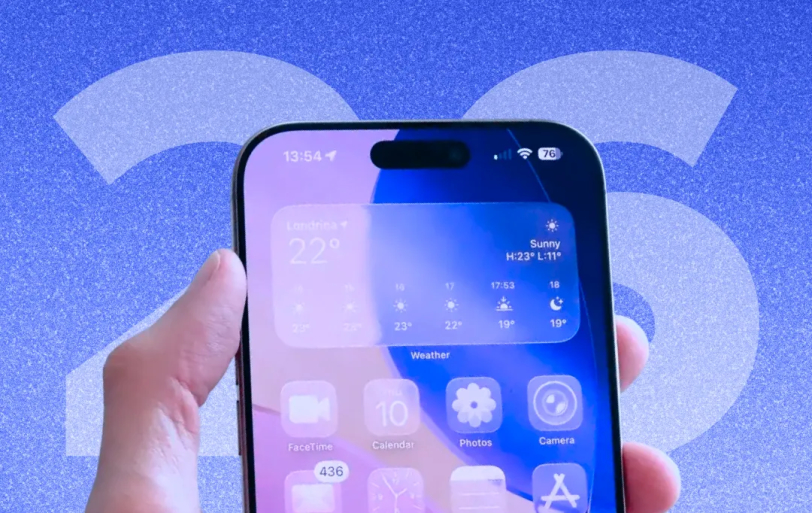
The biggest thing you’ll notice in iOS 26 is the new look, which Apple is calling ‘Liquid Glass.’ It’s a total visual refresh that gives the entire interface this really cool, frosted glass effect. You can definitely see where they got the idea—it feels heavily inspired by visionOS and brings a much-needed modern vibe to the iPhone.

Getting Started…

To begin customizing your Home Screen, press and hold on an empty area until the icons jiggle. Tap the Edit button in the top-left corner, then select Customize. This opens the customization menu, where you can adjust different settings.

Customizing Icon Styles

Within the customization menu, navigate to the Clear section. Here, you can choose from 3 different Liquid Glass styles:

  • Clear Light: Fully transparent icons, allowing your wallpaper to shine through.
  • Clear Dark: Icons with a subtle dark tint, maintaining some color while still showcasing the glass effect.
  • Clear Auto: Automatically switches between light and dark modes based on your device's settings.

If not this, you can also choose to use the  Tinted icons, which apply a colored hue to your app icons and widgets. You can also revert to the default icons for a more traditional look.

Matching Icons to Your iPhone 

Here’s a cool way to get everything on your screen to match perfectly. With the new ‘Matched Icons’ feature in iOS 26, you can tie your whole theme together by syncing your icon colors with your iPhone itself. It’s especially slick if you use one of Apple's official MagSafe cases, as the system does the work for you.

To get it going, head over to the Customize screen and pick the 'Tinted' option. Look for the small icon that looks like an iPhone and give it a tap—your icons will instantly change color to match.

Selecting the Perfect Wallpaper

Your wallpaper is the main character in the Liquid Glass experience. While you can use any image, wallpapers with subtle gradients or frosted glass effects complement the Liquid Glass design beautifully.

You can choose beautiful wallpapers from different apps like Pinterest, for inspiration. Or consider using third-party theming apps such as Brass, Color Themes, or ScreenKit to find or create the perfect wallpaper.

Creating Custom Widgets

Widgets are another area where you can infuse your personal touch. Apps like Widgy allow you to design custom widgets that match your Liquid Glass theme. You can adjust transparency, colors, and even import designs from other users. To add a custom widget, press and hold on your Home Screen, tap Edit, then Add Widget, and select Widgy.

Tips for a Seamless Experience

Okay, a couple of quick thoughts on getting this new look to feel right. If all that glassiness is a bit much for your eyes, don't sweat it. There's an easy fix buried in your Accessibility settings—look under Display & Text Size and you'll find 'Reduce Transparency.' It helps a ton.

Also, a word to the wise: bright sun and transparent icons are not friends. If you're outside squinting at your screen, try a wallpaper with some real punch to it; think bold, contrasty colors. And seriously, don't just leave your icons where they landed. Half the fun is shuffling everything around until your layout feels like your own.

Riya

By Riya

Have newsworthy information in tech we can share with our community?

Post Project Image

Fill in the details, and our team will get back to you soon.

Contact Information
+ * =