 If you can’t speak the language of your design team, you’re essentially handing over a blank check and hoping for the best. Master these web design terms today or risk watching your digital ROI vanish into a black hole of miscommunication.
You are ready to scale. You’ve set the budget, you’ve identified the need for a digital overhaul, and you are currently in the process of hiring web design companies. But then the first meeting happens. The designers start talking about ‘viewports,’ ‘negative space,’ and ‘back-end integration.’ Suddenly, you feel like a tourist without a map.
When you don’t understand the web design glossary with examples, you can't provide effective feedback. You might agree to a ‘fixed layout’ when you actually needed ‘responsive design.’ You might overlook ‘information architecture’ until the site is too confusing for your customers to use.
This web design glossary is your strategic toolkit. It is designed specifically for C-suite executives and marketing leaders. You aren't going to get bogged down in code. Instead, you are going to focus on the terms that impact your bottom line. By the end of this guide, you will be able to walk into any boardroom with the knowledge of the web design trends and with the most technical design team in the world.
Web Design Terms to Know
A
1. Above the Fold
The portion of a webpage that is visible to the user immediately upon loading, without any scrolling. This is the most critical area for high-impact messaging.
2. Accessibility
The practice of making websites usable for everyone, including people with visual, auditory, or motor impairments.
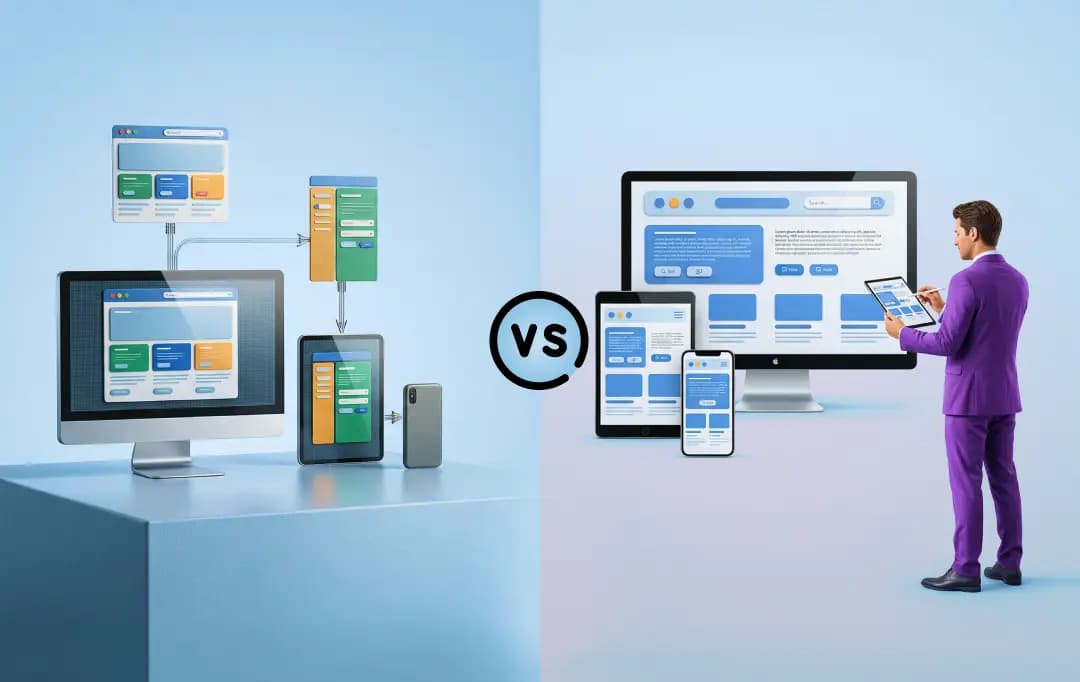
3. Adaptive Design
A design approach that uses multiple fixed layout sizes. The site detects the device type and "snaps" into the pre-set layout that best fits that screen.
4. Alt Text
Short for "alternative text," this is a written description assigned to an image. It helps screen readers for the blind and assists search engines in indexing the image.
5. API (Application Programming Interface)
A set of rules that allows two different pieces of software to communicate. For example, a website uses an API to show a live Google Maps feed.
B
6. Back-End
The "server-side" of a website that users never see. It consists of the server, the database, and the application logic that processes data and powers the site’s features.
7. Below the Fold
The part of the website that requires a user to scroll down to see. It typically contains supporting information, social proof, and deeper content.
8. Bounce Rate
The percentage of website visitors who leave after viewing only one page. A high bounce rate often signals that your landing page isn't meeting user expectations.
9. Breadcrumbs
A trail of links at the top of a page that allows users to see where they are in the site's hierarchy and navigate back to previous sections.
10. Breakpoints
Specific pixel widths are defined in the code where the website layout changes to accommodate the screen size (e.g., switching from a 3-column layout to a 1-column layout).
C
11. Call to Action (CTA)
A prompt that tells the user exactly what action to take next, such as "Request a Demo" or "Download Whitepaper."
12. Cascading Style Sheet (CSS)
The code used to describe the presentation of a web page. While HTML provides the structure, CSS provides the style, colors, fonts, and layouts.
13. Content Management System (CMS)
Software that allows non-technical users to create, manage, and modify website content without writing code. Common examples include WordPress and Webflow.
14. Conversion Rate Optimization (CRO)
The systematic process of using design and data to increase the percentage of users who take a specific action on your site.
15. Critical Path CSS
The minimum amount of CSS code required to render the "Above the Fold" content. Optimizing this makes the site feel faster to the user.
D
16. Dark Mode
A supplemental color theme that uses light-colored text and icons on a dark background, often used to reduce eye strain.
17. Domain Authority (DA)
A search engine ranking score that describes a website's "repute." It is influenced by the quality of links and the site's technical structure.
18. Domain Name
Your website’s digital address (e.g., yourcompany.com). It is the human-readable string that users type into a browser to find your business online.
19. Domain Name System (DNS)
The "phonebook of the internet." It translates human-friendly domain names into numerical IP addresses so that computers can locate and load your website.
E
20. Extensible Markup Language (XML)
A markup language designed to store and transport data in a way that is readable by both humans and machines. It is often used for sitemaps and data feeds.
F
21. Favicon
The small brand icon displayed in the browser tab or bookmark bar helps with site identification.
22. Filter
A tool that allows users to narrow down content (like products or blog posts) based on specific criteria, such as price, date, or category.
23. Fluid Grids
A layout system that uses relative units like percentages rather than fixed units like pixels. This allows elements to resize proportionally.
24. Focal Point
The specific area of a design that is intended to grab the user's attention first. It is often created through size, color, or high-contrast imagery.
25. Front-End
The "client-side" of the website. It is everything you see and interact with in your browser, built using HTML, CSS, and JavaScript.
26. Functionality
The ease with which a website allows users to perform tasks. If a site has good functionality, its features, like search bars or forms, work exactly as expected.
G
27. Graphic Design
The craft of creating visual content to communicate messages. In web design, this involves using typography, photography, and illustration to build a brand identity.

28. Graphic Interchange Format (GIF)
An image format that supports both static and animated images. It is best used for simple animations or low-resolution graphics.
29. Grid
A framework of vertical and horizontal lines used to structure content. Grids help designers maintain alignment, balance, and consistency across different pages.
H
30. Hamburger Menu
The icon consisting of three horizontal lines is used on mobile sites to toggle a hidden navigation menu, saving valuable screen real estate.
31. Header
The top section of a web page that usually contains the logo, main navigation menu, and contact information. It stays consistent across most pages.
32. Headless CMS
A back-end-only content management system that acts as a content repository, making it accessible via an API for display on any device.
33. Hero Image
A large, high-resolution banner image or video located at the top of a webpage, usually intended to deliver a strong first impression.
34. Hex Codes
A six-digit code (e.g., #000000) used in web design to identify specific colors. This ensures brand colors are identical across all digital platforms.
35. Homepage
The main entry point or "front door" of your website. Its primary role is to orient the user and direct them to the most important sections of your site.
36. Hyperlink
A clickable link that connects one web page to another, either within your own site or to an external source.
37. Hypertext Markup Language (HTML)
The standard markup language is used to create the basic structure of web pages. It uses "tags" to define headings, paragraphs, and links.
I
38. Infinite Scroll
A navigation style that continuously loads content as the user scrolls down the page, common in social media feeds and news sites.
39. Information Architecture (IA)
The practice of organizing and labeling website content so users can find information and complete tasks intuitively. It is the foundation of the site's navigation.
J
40. Javascript
A programming language that allows you to create interactive and dynamic content. It powers elements like sliders, pop-ups, and live-updating data.
K
41. Kerning
The process of adjusting the spacing between individual characters in a word to achieve a visually pleasing and readable result.
L
42. Landing Page
A specific page designed to convert visitors into leads or customers. It is usually stripped of the main navigation to keep the user focused on a single conversion goal.
43. Lazy Loading
An optimization technique that delays the loading of non-critical assets (like images) until they are needed as the user scrolls.
M
44. Meta Tag
Snippets of code that provide information about a webpage to search engines. While not visible on the page itself, they are vital for SEO and how your site appears in search results.
45. Micro-interactions
Small, functional animations that provide feedback to the user, such as a button changing color when hovered over or a similar animation.
46. Minification
The process of removing unnecessary characters (like spaces and comments) from the website's code to reduce file size and increase speed.
47. Mobile-First Design
The strategy of designing the mobile version of a website first and then scaling it up for larger screens like tablets and desktops.
48. Mockup
A mid-to-high fidelity static representation of the website design. It includes the chosen colors, typography, and images to show what the final product will look like.
O
49. Open Source
Software with source code that anyone can inspect, modify, and enhance. It encourages collaboration and prevents you from being "locked in" to a single vendor.
P
50. Page Speed
The amount of time it takes for a specific webpage to fully load. Faster page speeds lead to better user retention and higher search rankings.
51. Parallax Scrolling
A design effect where background images move more slowly than foreground images, creating an illusion of depth as the user scrolls.
52. PHP
A widely used open-source scripting language executed on the server. It is the primary engine behind platforms like WordPress and many custom web applications.
53. Plugins
Small pieces of software that plug into a CMS (like WordPress) to add specific features or functionality without needing custom code.
54. Portable Network Graphics (PNG)
A high-quality image format that supports transparency. It is the industry standard for web logos and icons because it doesn't lose quality when compressed.
55. Prototype
An interactive, clickable model of the website. It simulates the final user journey and functionality to test logic before the development phase begins.
R
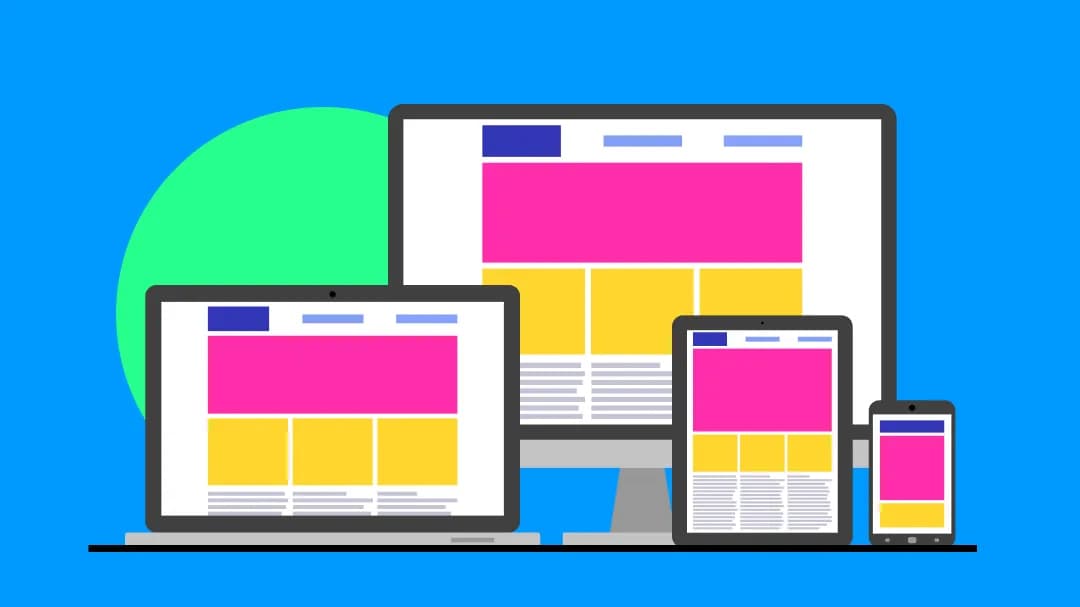
56. Responsive Web Design (RWD)
A design method that ensures a website automatically adjusts its layout, images, and menus to fit any screen size, from desktops to smartphones.
S
57. Screen Readers
Software programs that allow blind or visually impaired users to read the content on a computer screen. Designing your site to be compatible with screen readers is a key part of accessibility.
58. Secure Sockets Layer (SSL)
A security protocol that creates an encrypted link between a web server and a browser. It ensures all data passed between them remains private and secure.
59. Secure Sockets Layer (SSL) Certificate
A digital certificate that authenticates a website's identity and enables an encrypted connection (HTTPS), protecting user data.
60. Semantic Markup
The practice of using HTML tags that reinforce the meaning of the content (like <header> or <article>) rather than just its appearance. It is crucial for SEO and accessibility.
61. Single Page Application (SPA)
A web application or website that interacts with the user by dynamically rewriting the current page rather than loading entirely new pages from the server.
62. Sitemap
A file or diagram that lists all the pages of a website. It helps search engines understand the site's hierarchy and ensures all pages are findable.
63. SEO Design
A design approach that prioritizes search engine visibility by optimizing site structure, image sizes, and code for faster crawling and indexing.
64. Style Guide
A comprehensive document that outlines the design standards for a brand, including colors, fonts, button styles, and iconography.
65. SVG (Scalable Vector Graphics)
An image format that uses math instead of pixels. This allows images to be scaled to any size without losing quality or increasing file weight.
T
66. Technical Debt
The long-term cost of choosing an easy, quick-fix design or code solution now, instead of a better, scalable approach that takes longer to build.
67. Technical SEO
Refers to website and server optimizations that help search engine spiders crawl and index your site more effectively to grow organic traffic.
68. Typography
The style and appearance of printed or digital matter. It involves choosing fonts, sizes, and spacing to ensure readability and brand consistency.
U
69. User Experience (UX)
The overall internal experience a person has as they interact with every aspect of a company’s website. It prioritizes ease of use, efficiency, and user satisfaction.
70. User Interface (UI)
The visual elements of a website that users interact with, including buttons, fonts, color schemes, and spacing. It focuses on the look and feel of the digital product.
V
71. Viewport
The user's visible area of a web page. It varies by device; a phone has a much smaller viewport than a widescreen monitor.
72. Visual Hierarchy
The arrangement of design elements in order of importance. This is achieved through size, color, and placement to guide the user's eye.
W
73. Web Page
A single document on the internet that is part of a larger website. Each page has its own unique URL.
74. Web Server
A computer or system that stores your website's files and delivers them to a user’s browser when they request your URL.
75. Website Content
The actual information on your site, including text, images, videos, and audio. This is what provides value to your website visitors and drives search rankings.
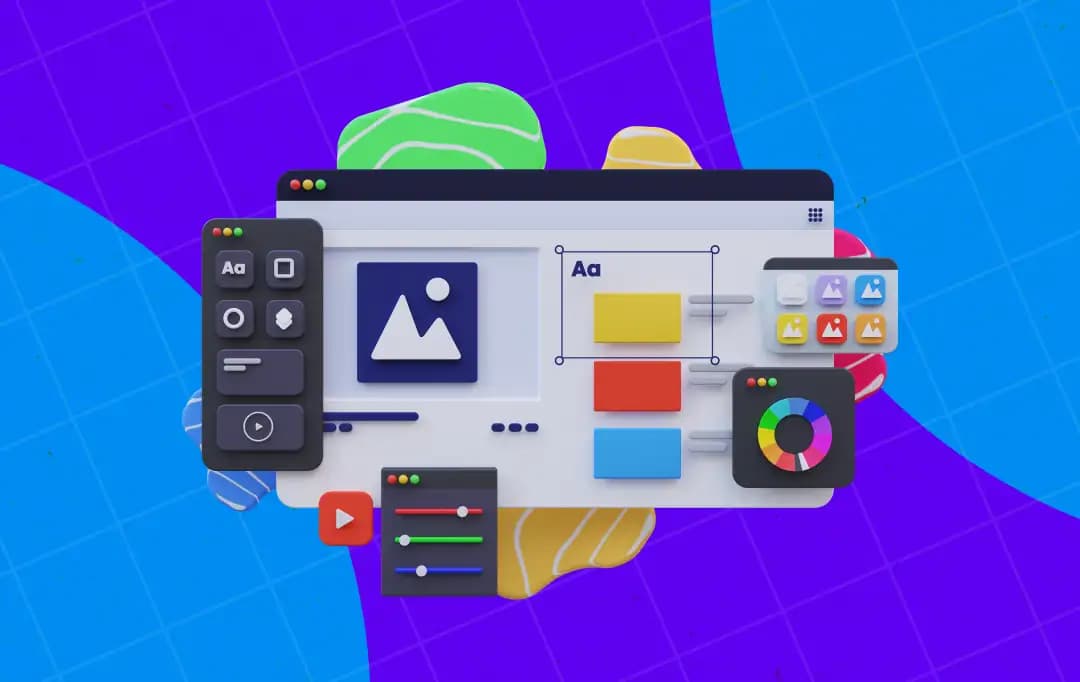
76. Website Design
The process of planning, conceptualizing, and arranging content online. It goes beyond aesthetics to include functional elements like navigation and user flow.
77. Website Visitors
The unique individuals who land on your site. Tracking this metric helps you understand your reach and the effectiveness of your marketing.
78. White Space (Negative Space)
The empty areas between design elements. It is used to prevent clutter, improve readability, and draw focus to important sections or calls to action.
79. Wireframe
A low-fidelity, black-and-white blueprint that outlines the structural layout of a webpage. It defines where elements like images and text will go without focusing on design.
80. WordPress
The world’s most popular Open Source content management system. It is highly flexible and powers everything from small blogs to enterprise-level websites.
81. 404 Error Page
The page a user lands on when they try to access a URL that does not exist or a link that is broken.
Master the Language of Digital Growth
Think about this glossary as more than just a list of definitions. It is an investment in your professional communication. When you speak the same language as your designers, you eliminate friction. You reduce the number of re-work hours. You ensure that the final product doesn't just look pretty but actually aligns with your long-term business vision.
Don't let this be a guide you read once and forget. Keep it bookmarked. Share it with your marketing team. The next time you sit down for a project kickoff or a quarterly review, bring these responsive web design terms into the conversation. You’ll find that when you change the way you talk about design, the quality of the design you receive changes as well.
This is how you scale. This is how you lead. This is how you hire a web design agency. Use this glossary as your roadmap for every digital project moving forward, and watch how much more efficient your path to growth becomes. When the world of web design stops being a ‘black box’ and starts being a tool you can control, your ROI will finally reflect the true potential of your business.

Uncover executable insights, extensive research, and expert opinions in one place.
Related Content