Share It On:
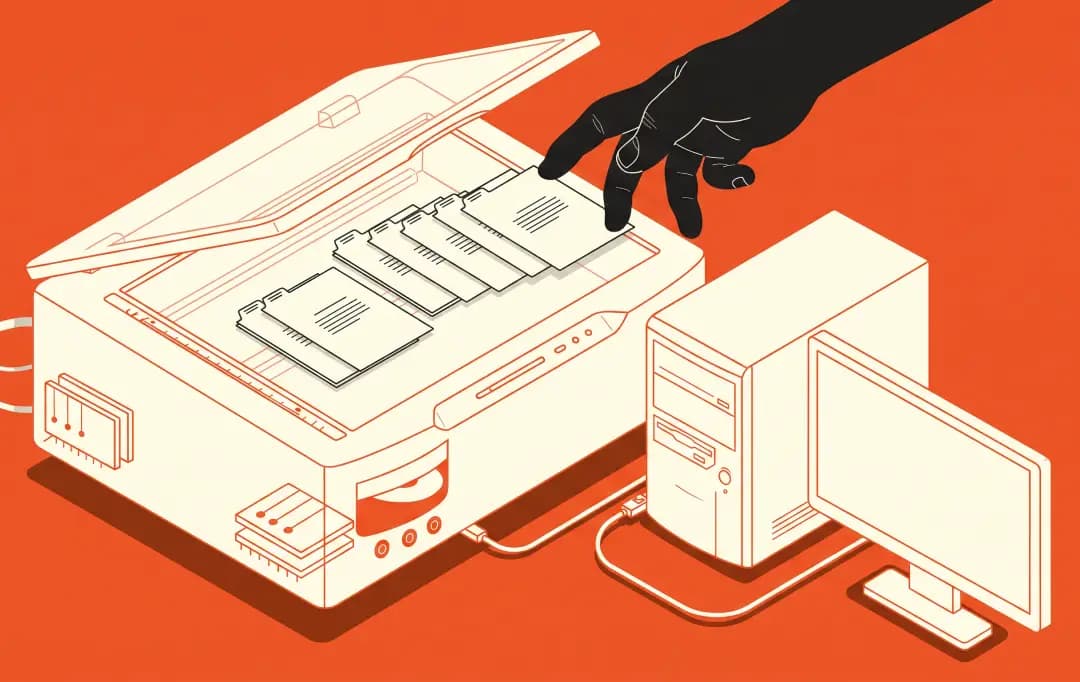 Learn how TWAIN drivers bridge hardware with business apps to eliminate scanning bottlenecks and simplify high volume document management workflows.
Introduction
Scanners are not chosen based on image quality and scanning speed alone. For many organisations, it is more difficult to ensure that scanners function properly with current software.
When you scan an important contract, medical record, or invoice, only to find that the scanner doesn't communicate properly with the software you rely on. The problem often isn't the scanner itself; it's the compatibility between the scanner and the application.
This is why many organisations rely on TWAIN-supported scanners, which provide a standard way for scanners and software to communicate efficiently. Whether in legal, healthcare, or finance, TWAIN support helps improve and streamline document workflows.
In this guide, we'll explain how TWAIN works and why TWAIN-supported scanners remain the preferred standard for many organisations.
What is “TWAIN”?
TWAIN is a standard communication protocol that enables software applications to communicate with imaging devices such as scanners. It provides a common interface that enables compatible software to detect, control, and receive scanned images from a scanner.
For example, when you scan a contract directly into a document management system or import a medical record into specialised software, TWAIN serves as a communication bridge between the scanner and the application program.
This allows software to receive images directly from the scanners instead of requiring a separate process to transfer the scanned file.
What is the TWAIN standard?
The TWAIN standard is a communication framework that allows scanners and imaging software from different manufacturers to work together through a common interface. It eliminates the need for separate integrations, enabling software applications to communicate with TWAIN-compatible scanning devices more easily.
A TWAIN-compatible scanner typically uses a TWAIN driver and API, allowing applications to detect, control, and receive scanned images from the device. This makes it possible to scan documents directly into applications such as document management systems, healthcare software, and accounting platforms.
By providing a standardized way for hardware and software to communicate, TWAIN gives businesses more flexibility in choosing scanning solutions while creating smoother document workflows.
How TWAIN Drivers Work?
The TWAIN architecture operates as a four-tier pipeline, passing commands down to the hardware and piping visual data back up to your screen in real time.
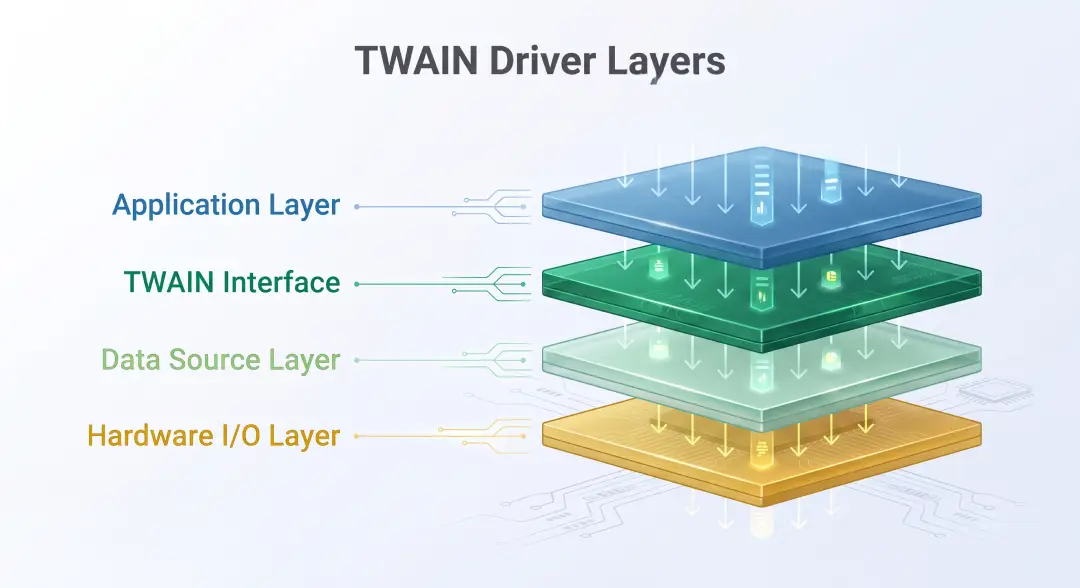
1. Application Layer
The workflow kicks off at the top level—the software your team uses on a daily basis, whether that is a document management platform, an image editor, a fax tool, or an office word processor.
When you click "Acquire" or "Scan," the application doesn't try to control the physical scanner directly. Instead, it calls the standardized TWAIN API functions, requesting an imaging session and defining what kind of image data it expects.
2. TWAIN Interface
Sitting right below the application is the Data Source Manager (DSM). Think of the DSM as the central traffic cop. It acts as the universal switchboard between software programs and connected imaging devices.
The DSM discovers which physical devices are available, handles connection handshakes, checks user permissions, and routes the application's commands to the correct driver without mixing up data streams.
3. Data Source Layer
Once the DSM routes the request, it hits the Data Source (DS) layer. This is the specialized software module provided for your specific device—whether it is a high-speed document scanner, a digital camera, or an image database.
The Data Source contains the core logic needed to control that device. It handles capability negotiation (checking what DPI, color modes, and page sizes the device supports) and translates software commands into actionable imaging instructions.
4. Hardware I/O Layer
At the bottom of the stack is the Hardware I/O (Input/Output) layer, which deals with physical machine-level communication. This layer takes the commands from the Data Source and sends electrical signals across the physical connection bus—whether that is modern high-speed USB/Ethernet or legacy interfaces like SCSI, parallel, and serial ports. It controls scanner motor speeds, moves the optical sensor, fires the lamp, and streams the raw binary pixel data back up through the pipeline.
Why TWAIN-Supported Scanners Are Essential for Professional Workflows
Running a high-volume office without standardized scanning drivers is a recipe for daily headaches. TWAIN-supported scanners remove friction across your entire tech stack by acting as a universal bridge between your hardware and document software.
1. Universal Software Compatibility
Each scanning app would have to have its own individual plugin for each scanner type that is available on the market, without a standard interface. TWAIN clears that up. A TWAIN-compliant scanner speaks to all enterprise document management systems, accounting software, and electronic health records tools, out-of-the-box.
2. Direct-to-App Ingestion Without Desktop Clutter
Old-school standalone scanning forces employees into an annoying multi-step routine: scan to a local folder, name the file, open the main software, and manually upload it. TWAIN pipes the image feed straight into the active application workspace. That kills manual upload steps and prevents sensitive client files from sitting unprotected on local desktop drives.
3. High-Throughput Batch Processing
The last thing you need is a crash when a stack of hundreds of invoices is falling into an automatic document feeder (ADF). TWAIN drivers are designed to perform high throughput batch scanning.
They work with continuous feeds, neatly manage the memory buffers, and ensure data flow smoothly so your software doesn't bog down in the middle of a batch.
4. Granular Control Over Hardware Capabilities
A decent TWAIN driver presents all the mechanical power of your scanner right in your application user interface. You have the ability to modify optical resolution (DPI), switch to a duplex (double-sided) scan, tweak the color depth and set the page size without ever leaving your workflow window.
5. Automated Image Optimization at Capture
Bad scans equals bad OCR (optical character recognition) results in the future. By performing automated image cleanups on the fly, TWAIN drivers can straighten out crooked pages (deskewing), remove hole punch marks, remove blank pages, and balance contrast for the first pass of the digitized copy.
Also Read: Top 10 Mobile Scanner Apps 2026 to Boost Productivity
Industry Applications of TWAIN-Supported Scanners
Professional organisations often handle documents that need to be captured quickly, accurately and consistently. The challenge becomes greater when scanned information moves between physical documents, scanners, and specialised business applications.
This is where TWAIN supported scanners become valuable. The practical value of this integration becomes clearer in industries where document accuracy, accessibility, and processing speed are particularly important. Here are some examples:
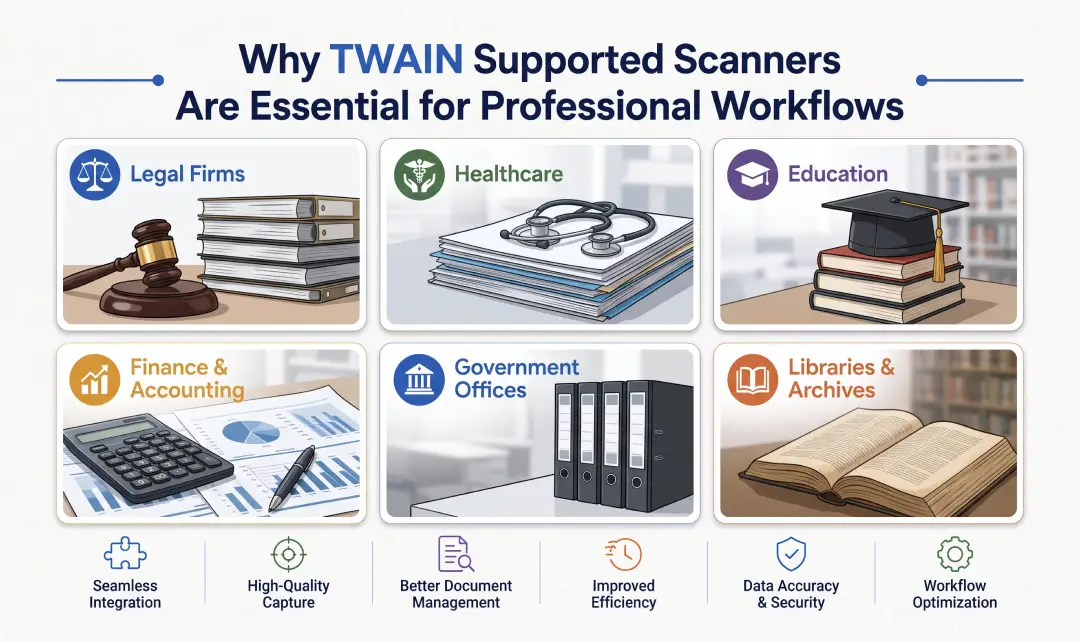
1. Legal Firms
Law firms scan contracts, court filings, evidence, and client records regularly. While importing these documents into legal document management systems, it should be done without losing quality or creating duplicate work.
With TWAIN, compatible legal applications can communicate with the scanner through the TWAIN driver and initiate the capture from within the application.
2. Healthcare
The healthcare environment deals with documents such as identification records, insurance information, patient forms, etc., that need to become part of an electronic patient record. Front desk and clinical staff often need to capture this information without adding unnecessary steps to an already busy workflow.
TWAIN allows compatible healthcare applications to communicate with a scanner and control the image capture process.
With TWAIN compatibility, you can scan documents directly into an EMR or hospital information system. As a result, it improves workflow and reduces the risk of misplaced documents.
3. Finance
Financial institutions regularly scan invoices, loan applications, tax documents, receipts, and compliance records. Processing large volumes of paperwork requires speed and consistency.
TWAIN-supported scanners integrate with accounting and financial management software, enabling faster document capture, easier record keeping, and more efficient auditing processes.
4. Education
Schools, colleges, and universities manage student records, examination papers, admission forms, certificates, and administrative documents throughout the academic year.
If we connect student information systems and document management platforms, TWAIN-supported scanners facilitate the process of record digitisation, enhance document accessibility and eliminate paperwork.
TWAIN vs. ISIS vs. WIA: Choosing the Right Protocol
Selecting the right scanning protocol simply depends on workflow, software requirements, and the required no. of documents. Even though TWAIN, ISIS, and WIA all allow scanners to communicate with software, they are designed for different purposes and differ in compatibility, performance and functionality.
| Feature | TWAIN | ISIS | WIA |
|---|---|---|---|
| Compatibility | Works with a wide range of software and scanners | Primarily enterprise scanning solution | Windows-based application |
| Best For | Professional business workflows | High-volume production scanning | Basic home and office scanning |
| Ease of Integration | Excellent | Moderate | Limited |
| Image Processing | Advanced | Advanced | Basic |
| Platform Support | Cross-platform | Enterprise environments | Windows only |
| Ideal Users | Most businesses and professionals | Large organizations | Home and small office users |
Which Protocol Should You Choose?
- Choose TWAIN when you require wide software compatibility and reliable document handling.
- Choose ISIS when you scan documents at large volume and require enterprise-level performance from your scanner.
- Choose WIA when all you need is basic scanning features on a Windows computer.
Quick Tip: In general, for most organisations, TWAIN-supported scanners will be the best balance of compatibility, flexibility, and ease of integration, making them the preferred choice for everyday professional document management.
Key Features to Look for in TWAIN-Supported Scanners
Choosing a TWAIN-supported scanner is not only about looking at the scanning speed or resolution. In order to have smooth integration with your existing software and efficient document workflows, you need to consider the following features prior to making a purchase.
1. Broad Software Compatibility
A good TWAIN-supported scanner must be compatible with document management software, OCR software, accounting platforms, healthcare applications, and many other business tools.
2. High-Quality Image Scanning
The quality of scanned images is vital when digitising contracts, invoices, medical records, and many other important documents. Look for a scanner that delivers sharp text and accurate colours to improve readability and reduce the need for rescanning.
3. OCR (Optical Character Recognition) Support
OCR technology allows paper scanning into an electronic format that becomes searchable and editable. It makes it easier to search and edit your documents.
4. Automatic Image Enhancement
Without doing anything manually, you can take advantage of features such as image correction, cropping or deskewing to enhance the quality of your scans. This helps save time and keeps documents clear and professional.
5. Batch Scanning Capabilities
Organisations with high volumes of documents that need to be scanned on a daily basis can benefit from automatic document feeders (ADF) and batch scanning, as these solutions help to streamline process workflows and increase productivity.
6. Easier Integration and Support for Drivers
Make sure you choose a scanner that has reliable TWAIN drivers and software updates on a regular basis. By providing ongoing driver support, compatibility with new operating systems and business applications are guaranteed for long term use.
Conclusion
For decades the traditional TWAIN configuration has been holding up the fort to maintain the clean interface between local hardware and desktop-based applications. However, with the changing of workplaces, the use of document capture is growing too. More people are becoming interested in TWAIN Direct, a driverless and cloud-compatible advancement that enables scanners to talk directly to web apps.
Going 100% cloud-based right out of the gate can sometimes introduce network latency or bandwidth constraints during heavy scan runs, while sticking strictly to traditional local drivers can limit flexibility for distributed teams.
For heavy batch jobs in the back office, a reliable desktop TWAIN driver setup can provide the sweet spot while integrating with API-based cloud capture can provide the sweet spot for decentralized capture.
Frequently Asked Questions
How do I know if my scanner supports TWAIN?
Consult the manufacturer's information on the TWAIN support on their product specifications or driver documentations. Alternatively, you can see if the scanning application identifies the scanner as a "Compatible Device".
What is the difference between a TWAIN compliant scanner and a regular scanner?
Any scanner will be able to scan a document and digitise it, but a TWAIN-supported scanner will integrate better with professional software applications.
Do I need a TWAIN-supported scanner?
A TWAIN-supported scanner will be helpful if you have to scan documents regularly into professional software like legal, healthcare, or accounting software, and want to streamline the process. If the need is occasional at home, then it is sufficient to have a simple scanner support.
Can TWAIN be used for high-volume document scanning?
Yes, but there are other factors to consider when selecting a scanner for high-volume scanning, such as its speed, its document feeder and the image-processing software.
Is TWAIN compatible with Windows and macOS?
TWAIN support depends on the scanner, driver, and operating system. Check the manufacturer's specifications to confirm compatibility with your system before purchasing.

Uncover executable insights, extensive research, and expert opinions in one place.
Related Content